Showing posts with label hard drive. Show all posts

Monday, January 12, 2026

How to: Four simple ways to speed up your Windows PC boot up time

So you turn on the power button to your computer....waiting for Windows to boot.....you see the Manufactures screen......then you see the Windows 11 screen.

Waiting....waiting........you go decide to make a cup of coffee.
You come back.....your desktop has appeared.....but the hourglass is showing....meaning programs are running in the background. 

OMG!! Two minutes later....."finally!!"

How often have we gone thru that?
Well....it doesn't really have to be that way. In fact, the following steps will trim your Windows boot time from a slow snail's pace to a quick rabbit on caffeine.

Disabling certain startup programs

It's a well-known fact. The longer you have a PC, the more you'll end up downloading programs and software. Some programs that automatically get stored into memory as Windows starts up, slowing the boot time. Printer programs and drivers, antivirus software...and other software.
By disabling some of these programs you can speed up Windows boot time.

1. Right-click (not left click) on the Start Menu, and click "Task Manager"
2. When the Task Manager appears, click on Startup - here is where the current programs assigned by Windows to startup automatically.
3.  Right-click on the program you don't want to start automatically and select Disable

Upgrading your hardware

A second way to speed up your Windows startup is to upgrade your system's hardware.
With desktops, your options in doing this are a little more than if you have a laptop. First, try upgrading your memory. If you have a desktop or laptop running 8gb of RAM, look into possibly upgrading to 16 or 32GB.

To see the status of your memory usage, right-click the taskbar, and select Task Manager. Click the Performance tab: In the lower-left corner, you’ll see how much RAM is in use. If under normal use, the Available option is less than 25 percent of the total, an upgrade may do you some good.


Crucial and Kingston are major PC memory providers and Crucial has a memory diagnostic tool to determine what kind of memory as well as Kingston Memory scanner.


Upgrade from a Hard Drive to a Solid State Drive

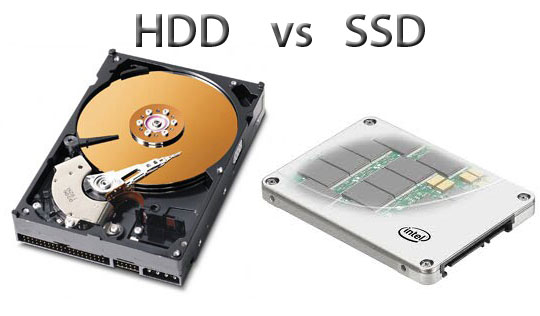
As SSDs work with flash memory (the kind that are in USB drives) they can be up to 8 times faster than standard hard drives. This speeds your Windows boot time tremendously.

See my Advantages of SSDs to Hard Drives article for more information on this.


Use Sleep instead of Shut Down

When you have finished with whatever you're doing on your PC, select Sleep instead of completely shutting the computer down.

If you choose Shut Down Windows closes all apps, programs, logs you off and closes the Windows session, and shuts down the computer.

Sleep keeps the Windows session open and uses a low power state (not shutting the PC completely) thereby starting Windows instantly.


Monday, December 12, 2022

Advantages of a SSD over HDD

There are huge advantages switching from a Hard Disk Drive (HDD) to a SSD or Solid State Drive.

Advantages of SSDs:

Boot up time: A computer which has a HDD (Hard Disk Drives) has to wait for the disks (platters) to spin up to a specific rpm in order to read data.....usually 5400 or 7200 rpms. SSD contain flash (NAND) memory which is almost instantaneous when it comes to reading the operating system.

No Wear & Tear: A HDD contains moving parts.....the spinning disk or 'platter', the read/write armature or arm ...etc. These mechanical parts over time will wear out the more it is used. SSD's are made of flash memory which has no moving parts.

No Noise: Because SSDs contain no moving parts they are virtually silent compared to the noisy HDDs. 

Cooler: Physics tell us that moving parts against each other cause friction....thus making heat. 
Because of this, HDDs make alot more heat than SSDs. That's why many Chromebooks and netbooks have no fans as they use the cooler SSDs.

No fans mean less power usage....less power means more battery lifetime...see where I'm going with this?


Speed / performance: On a HDD, files get erased and new files are replaced over a period of time. Eventually parts of one single word document are all over the hard drive. The read/write head must search the HDD for the entire file.


This is called 'fragmentation'. Reading files across an entire platter or disk takes time. In SSD there is no read/write head so data can be stored anywhere and access is almost instantaneous.

Disadvantages of SSDs:

Price:
One of the disadvantages of SSDs is that the price per GB is 15-20 cents more than a HDD.
That means a 1TB SSD costs $200-$230 compared to a HDD of the same size which costs only $40-50.

Memory Wear Out:
One of the hottest discussions in the tech industry concerning SSDs is 'memory wear out'.
Flash memory is measured in write cycles, or program/erase (P/E) cycles. Because of the inherent nature of flash memory, the lifecycle of SSDs are limited in the number of times data is written.

When data is written on a block of memory, the entire block must be erased first. Depending on the type of NAND memory of the SSD, the write cycles may be from 30,000 writes to 100,000 writes.
Don't stress over this too much. A technology called "wear leveling" ensures data is written over a broad spectrum of memory blocks on the SSD so not one single block gets hit. Writing to a single block of flash memory 30,000 times would be the equivalent of you sitting at your laptop and pressing the "Enter" key 1 thousand times a day for an entire month.

The future of storage

Solid State Drive technology is evolving quickly with different types of memory storage. SLC, MLC, TLC are different types of NAND, which is a type of flash memory that retains memory when the power is off.
Samsung and Intel are working on 3D NAND, and Intel may soon boast the worlds largest SSD at 10GB with the new technology.

Hard disk drives are still the king when it comes to size and price, however as SSDs become cheaper, expect more to show up on systems and will soon to overtake HDDs.
It's expected next year that 41% of laptops to arrive with SSDs and are expected to overtake HDDs by 2018.


Originally published on 11/24/16

Monday, March 11, 2019

How to: Windows Utilities - SpaceSniffer

When consistently downloading and installing programs, in the back of a users mind is that one big question. "Which programs are taking up the most space?"

While there are dozens of disk analyzer programs my preference is SpaceSniffer. It's quick in scanning your drive. My 250GB SSD took approx 1:20 at 100% scanning completed. Of course this varies with the drive capacities, amount of free space, and whether it's a standard hard drive or SSD.


SpaceSniffer has a few goodies. Besides the graphical GUI, it supports drag and drop, multiple views for different file types, customized search criteria and other features.

The website shows it's been tested on Windows 2000 thru Windows 8, however it works with 10 just as well.
The web page can be visited here.

Tuesday, November 13, 2012

Age old computer priciples that have stood the test of time

Technology is always moving forward.
The next best thing is around the corner it seems. Hardware gets faster and operating systems are upgraded to the newest features (or we hope so). It's just a natural step in computing laws. But just because your 6-year-old Vista desktop is obsolete doesn't mean some computer advice ever does. Take the following list of age-old computing wisdom. Most of the principles apply today as they did 20 years ago.

When in doubt, punch out

If something isn’t working on your PC, don’t wring your hands and yell at the screen. Just restart the system. That simple act alone will fix many of the problems you may be experiencing. When your PC restarts, it clears out all the temporary files in the RAM and relaunches the operating system. This wipes away any files that may have been giving your PC fits—and the operating system starts fresh and unfettered by whatever was affecting it. If you want to do these things without restarting, click Start, then Run, and type %temp% into the command line.

Expect your battery to let you down

It's simply Murphy's Law: Your laptop or tablet will poop out the moment you need it most. That is life. Always bring your power cables with you on the road, and if possible invest in backup and secondary battery options.

Crowdsource your troubleshooting

Chances are, the help resources at your device manufacturer’s website won’t address your exact headache, but if you type an error message or problem you're having into Google, you'll inevitably find helpful information from poor souls who have encountered the very same issue.

Back everything up 

Never get caught with just one copy of anything that you want to keep. Always back up your data, and then back up your backups. Consider backing up both to an external drive and to a cloud storage service. It’s a good idea to keep separate system and data partitions—back up your data partition daily, and back up your system partition (Windows as well as your installed programs) at least quarterly.

Remember that thumb drives are your friends

It’s very easy to lose track of the recovery discs that come with a new PC, so keep a USB drive with recovery software on it in case something goes wrong. Store it away in a safe, easy-to-remember place. And in that same safe place, keep both electronic and print copies of all your software keys.

Look to last year’s model for a better value

Tech manufacturers always charge a premium for the latest and greatest hardware—and typically you don't really need the world's fastest processor, graphics card, or I/O technology. So do yourself a favor and consider buying hardware that was best-in-class during a previous manufacturing cycle. It will likely be heavily marked down, but still wholly capable and packed with performance.

Skip the extended warranty 

Don't be a sap. Extended warranties are designed to prey on your fear that the hardware you just purchased is already on its death bed. From a return-on-investment perspective, extended warranties almost never pay off—except for the companies that sell them.

Read the manual 

You might be surprised at what you can learn by reading user manuals. It’s natural to just jump right in and begin doing the things you expect a device or application to do, but I've found that by reading the manual I can learn about features and functions I didn't know existed. Reading the manual can increase the benefit you derive from your device, and make you feel a whole lot better about buying it.

Consider the total cost of ownership

This mostly applies to purchases of printers and subsidized phones. If you intend to do a lot of printing, pay close attention to the cost and efficiency of consumables, namely the ink or toner. And if you're investing in a new smartphone plan, consider what you'll be paying month to month...to month...to month...

Resist the urge to impulse-shop

A tech geek is never more dangerous than when perusing the aisles of a brick-and-mortar hardware store. If you absolutely must purchase a new toy in person, make sure to do your research beforehand. Don't be swayed by the razzle-dazzle of salespeople, and arm yourself with deep product knowledge before you enter a store. Also, always ask the retailer to match lower Internet pricing, if you can find it. (You'll want to bring your smartphone with you.)

Keyboard shortcuts: Use them, live them, love them

You can work far faster (and look way cooler) by mastering keyboard shortcuts for the programs, services, and operating systems you use every day. To learn these shortcuts, check out PCWorld's numerous articles containing keyboard shortcuts for every major OS and many popular applications. Get started with Windows 7 shortcuts.

Keep your software up-to-date

The message windows reminding you to update your software can get annoying, but it’s a good idea to stop what you’re doing and click the 'Update now' button. You'll get the all the functionality the software has to offer, and you'll also obtain vital security patches that can protect your system from software crashes and data loss.


Hide those cables

The tangled mess of cables and wires under your desk will only get worse and worse—and you won’t realize how much it bugs you until you finally clean it all up. You can bundle groups of wires by running them through toilet paper tubes, or binding them with pipe cleaners or small bands of Velcro, and then use binder clips to tie the bundled wires to the underside of your desk, or any place where they’re out of sight.

Stay wired when you want to connect

Wired ethernet will always be faster and more reliable than wireless networking. If you regularly do something (for work or play) on your home computer that relies on a constant Web connection, you may be better off using a wired Internet connection. Wired connections are capable of far faster data speeds and are simply not subject to the many factors that can disrupt a wireless connection.

Put your router in the middle

Position your wireless router as close as you can to the center of your home. This action can help ensure that all the wireless devices in your home are within range of the access point. You’ll also find that the signals coming from your router are more likely to reach their destination if the antenna is elevated off the floor a few feet.


Investigate crashes

If your PC seems to crash frequently, the Windows Reliability Monitor (Control Panel > System and Security > Action Center > Reliability Monitor) can help isolate the cause. The utility keeps track of all hardware and software crashes and warnings, organizing them by date. By clicking on one, you can see the full details of what happened.

For gamers: Update your drivers

Confirm whether you have the latest drivers for your PC's graphics and sound hardware. Game developers create their titles using the latest features and functionality in graphics cards. If you’re using older drivers, your graphics card might not be up to the task of rendering the game properly on screen.

Take a screenshot

Save a screenshot (or snap a photo and save it to Evernote) of every weird problem or crash you see. Having an image can help immensely if the problem becomes chronic and you need assistance in fixing it.

Change your router's default SSID

The easiest thing you can do to improve the security of your wireless network is to change both the login and the password for your router to unique alphanumeric phrases that only you know. Since finding the default login and password for almost every router on the market is child's play online, leaving your router at the defaults allows anyone to gain access to the wireless network in your home or small business.

Clear your cookies

Erase your browsing history and even better, enable the Do Not Track feature on your browser. This feature will send a message to the websites you visit that it is not okay for them to install cookies in your browser that will record your movements around the Web. Unless you want that to happen, of course.

The best tip of all: Take a break

Every so often, take an technology sabbatical. Go 24 hours without looking at a screen. It's good for your eyes, and it reduces the chance of burnout. It also reminds you of how powerful personal computers of all shapes and sizes have become—and that thought alone might make everyone a little more tolerant and patient when problems arise.

Wednesday, February 22, 2012

How to: The how and whys of defragmentating a hard drive


Over a period of time you may save and delete hundreds of files and documents on your computers hard drive. These files are save, moved, deleted all over sections of the hard drive.

Whenever you delete a file and empty the trash bin, that cluster(smallest portion of disk space for writing files) of the hard drive is now empty and can be used for writing over again.


Now lets say you want to save a word document which is 900bytes in size. A gap/cluster size on the hard drive is usually 512bytes.

A portion of that word document, 388bytes, would have to be saved on another empty gap (cluster) somewhere else on the hard drive. Do this hundreds of times throughout the week and portions of files are spread all over the hard drive.

Defragmentation physically organizes the contents into the smallest number of contiguous regions (fragments). A defragmentation program moves files around within the free space available to undo fragmentation. This is a very intensive operation and cannot be performed on a file system with no free space. The default defragmenter which comes with Windows is okay, but there are faster and more efficient ones out there.


My preference is Auslogics, which is very fast and efficient and allows background programs running.