Showing posts with label Microsoft. Show all posts

Monday, January 30, 2023

Tech news: "The great tech layoff"

Last week all the major players of technology; Google, Microsoft, Amazon and Meta have all announced huge layoffs of workers. When we say huge, we're talking in the thousands.

Google laid off 12,000, Microsoft 10,000, and at Amazon 18,000.


According to layoffs.fyi and Insider's calculations, more than 65K workers have lost jobs so far in 2023.

Over at Apple, it's looking slightly brighter for the employees as Tim Cook took a 40% pay cut to avoid the layoffs.

On January 20, Sundar Pichai, CEO of Google parent Alphabet, announced layoffs that equal to about 6% of the company's total workforce.

So why the gauntlet of employee cuts?

Most industry watchers speculate that the pandemic had a major effect on the way consumers spend. 

During the Covid lockdown taking your wallet out for travel, restaurants and entertainment were off the table. Many industries were directly impacted by the pandemic, especially restaurant, airlines, cruises, media production, manufacturing, retail, oil, and gas.

So instead of the usual spending habits, people began looking at alternative ways of spending their dollar with the majority of purchases done online.

One source reported that in less than a year, from February 2020 to January 2021, the percentage of online sales to total retail sales nearly doubled, going from 19.1% to 36% boosting sales for major tech companies including Amazon, Google and Zoom. 

In fact, in 2021 the New York Times reported, the five tech superpowers — Amazon, Apple, Google, Microsoft and Facebook — had combined revenue of more than $1.2 trillion!


Major tech needed major workers to fill in needed positions quickly!

So here we are January 2023, almost 3 years since the lockdown began in the US. Retail stores, restaurants, and malls have long since reopened and consumers have since reverted back to their pre-pandemic spending habits. The sharp influx of online shopping has slowed down dramatically.

So now the major tech firms that had fattened their workforce now need to trim the fat. Mind you these tech firms aren't going anywhere, and some foresee a slow hiring trend in the next two years but as Sundar Pichai stated they're all "bound to go through difficult economic cycles."


Friday, November 12, 2021

Windows 11 has arrived!! (or will be coming to a computer near you)

You've heard about it. It's been in the tech news since June when Microsoft announce the latest version of Windows. 

Yes.... the folks over in Redmond did say Windows 10 was to be the last version of Windows as a "Windows As A Service" feature, but hey everybody likes "new and improved"!!

New and improved Windows 11 is.... and yet, in some ways it isn't. It's like a brand-new paint job on your 2010 sports car, the engine still runs decent, but it needs a tune-up. 

Windows 11 has a very sleek, clean look, but underneath there are still some bugs. 

Windows 11 Start Menu

One of the slickest options within Windows 11 is the Snap Layout. This enables individual windows to "snap" to a side or corner of your preference.

Granted, this was in previous versions of Windows, but slightly clumsy using the arrows on your keyboard and the "Windows" key.

The Taskbar icons are centered at the bottom as the default. If you like the old style at the bottom left you can change this within the Taskbar Settings. Right Click on the Taskbar to do this.


There are issues and bugs concerning this latest release of Windows. Many have to do with hardware, processor and printer issues.

This page describes many Windows 11 bugs.


The biggest issue many have is with Windows slowing down AMD Ryzen processors. This is a known issue with the L3 cache on the processors. AMD has released a chipset driver update and Microsoft released an update to address the L3 cache issue.
*Follow directions closely concerning these updates and issues.

Personally, I have been using Windows 11 for about 3 weeks now and have had just a few minor issues. (Daylight Savings Time not updating was one issue)

So if you're looking to install Windows 11 on your system, review and check to make sure your hardware supports it. Do your homework, and backup your files before taking the plunge.


Here are Microsoft's requirements for windows 11.

Your device must be running Windows 10, version 2004 or later, to upgrade. Free updates are available through Windows Update in Settings>Update and Security.

* Processor1 gigahertz (GHz) or faster with 2 or more cores on a compatible 64-bit processor or System on a Chip (SoC).
* RAM4 gigabyte (GB).
* Storage64 GB or larger storage device Note: See below under “More information on storage space to keep Windows 11 up-to-date” for more details.
* System firmwareUEFI, Secure Boot capable. Check here for information on how your PC might be able to meet this requirement.
* TPMTrusted Platform Module (TPM) version 2.0. Check here for instructions on how your PC might be enabled to meet this requirement.
 
Microsoft also has a convenient program to check if your system is compatible. You can download it here


Tuesday, February 18, 2020

Tech News: Microsoft's latest Windows update was apparently deleting files

Microsoft has had to issue a major warning to all Windows 10 users.

The last update was deleting files.

With update KB4532693 a serious issue was detected with a small group of Windows 10 users, but it's serious involving the loss of some user data such as the desktop and personal files. First off, it’s important to understand that this is simply based on a small but a growing number of user reports.

When it was released on Microsofts "Patch Tuesday", the Windows 10 KB4532693 security update was found to revert certain system settings to their defaults and also removes files from the desktop. 

Restoring some files
For many users, Windows 10 has renamed main user profile folder and files can be restored from C:\Users profile folder ending in .000 or .bak name, with new reports of user data being deleted. 

The update has now been pulled from Microsofts update page and is no longer available.

https://support.microsoft.com/en-us/help/4524244/security-update-for-windows-10-february-11-2020

Tuesday, November 22, 2016

Windows as a service - what does it mean for you?

It's been a tradition of sorts with Microsoft releasing a new version of Windows every few years and the incremental security updates to that version. Then as a new release of Windows was to occur, updates to the previous version would slowly come to an end. And the support of the previous versions would end along with the *lifecycle.

For more information on Windows Lifecycles check out Microsofts Lifecycle page. You'll find that Windows 10 support and updates are N/A and have no end date.

When Windows 10 was released last summer, it was a pleasant surprise. The return of the Start Menu and Cortana, among other wonderful features. Of all the questions many users had the most popular would be "What will the next version of Windows look like?"

That question will very likely become obsolete (a word I don't like using), as Microsoft Vice President of Windows and Devices Group Terry Meyson explained.

"This is more than a one-time upgrade: once a Windows device is upgraded to Windows 10, we will continue to keep it current for the supported lifetime of the device – at no cost. With Windows 10, the experience will evolve and get even better over time. We’ll deliver new features when they’re ready, not waiting for the next major release. We think of Windows as a Service – in fact, one could reasonably think of Windows in the next couple of years as one of the largest Internet services on the planet."

What does this mean exactly? It means Microsoft no longer will release new versions of Windows. Instead the consumer will receive constant updates with new or improved features of Windows ....and this is the best part....at no cost! No more XP, Vista or Windows 7....just Windows!

Essentially you'll always be getting access to the latest operating system. The cons? As OEMs such as HP, Dell and Toshiba manufacture their latest PCs with the newest hardware there will likely be driver and compatibility issues until Microsoft catches up with the updates.

So there you have it.....there won't be a Windows 11 or Windows 2018....you'll always have the latest version of Windows on your computer....free. ;-)

The official Microsoft technet blog here.


Monday, November 10, 2014

Tech News: Windows 10 Technical Preview is here!

Windows 10 has arrived! Well at least in the form of a beta test called "Windows Technical Preview"

So alot of people are wondering what happened to Windows 9?
Initially there was a theory that Microsft avoiding the "9" title due to possible issues with the programming language relating to previous Windows  95 or 98. Again...that was just a theory.

The official word from the Redmond software giant is that "Windows 10 is not going to be an incremental step from Window 8.1," he explained. "Windows 10 is going to be a material step. We're trying to create one platform, one eco-system that unites as many of the devices from the small embedded Internet of Things, through tablets, through phones, through PCs and, ultimately, into the Xbox." according to Tony Prophet, Microsoft's corporate vice president.
So MS is trying to distance itself from the unpopular Windows 8.

Downloading Windows Technical Preview
You can download the preview here, However a word of caution. Once you install the operating system, you cannot go back to Windows 8 without re installing.
That being said it's highly recommended to install this on a secondary computer which you don't have any valuable files you don't want to lose.

But the most obvious bit of advice here, of course, is: Back up first, and create a recovery disk. In Windows 7, you will use Windows Backup for both. In Windows 8.x, you may need a third party utility, though that Windows 7 backup is there too. (Search for File History and then click "System Image Backup" in the lower-left corner of the File History control panel.) Search for "recovery drive" to create a recovery drive.

Getting Started
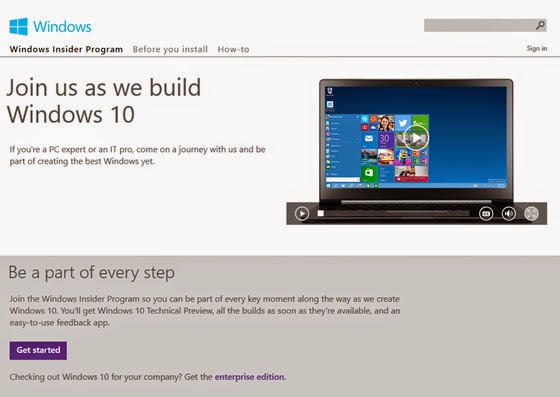
To install the Windows Technical Preview, you need to join the Windows Insider Program. So head on over to the Windows Insider Program web site and click the Get Started button.

You will find you have two choices of ISO files - a 32bit or a 64bit version.

If you're not sure which one to get, you can see which version you're currently using by right clicking 'My Computer' and clicking Properties. this will display your version of Windows. It will say "64-bit Operating System, x64-based processor" for 64-bit and "32-bit Operating System" otherwise. You will need the same type of OS version, especially if you're upgrading.

The ISO files are large, 3-4GBs. There's a few ways to install this on your system. Either by DVD, a USB drive or via a 'Virtual Machine' such as sandbox.

If you decide on the DVD or USB route copy it onto a USB or DVD.
When you're ready to install Windows Tech Preview, insert the USB drive or DVD with the ISO file on it and then run Setup.exe from the root folder on the drive.

The Installation
Win Tech Preview Licencing Agreement
The install typically takes 45minutes to 1 hour. Follow thru with the steps and accept the licencing agreement as well.


Win Tech Preview Ready screen

After Setup examines your system, you have one big choice to make. This screen assumes you wish to perform an in-place upgrade in which your current OS is upgraded to Windows Technical Preview, retaining all of your desktop applications and apps, and their settings, your OS settings and customization's, and your data.


Win Tech Preview Choices screen
If that is not what you want, click "Change what to keep." Then, in this screen, you will see the following options:

Keep Windows settings, personal files, and apps. The default, and what is called an in-place upgrade.

Keep personal files only. A migration, in which Setup backs up your documents and other data, clean installs Windows, and then returns your documents and other data to their original locations.

Nothing. A clean install, in which Setup erases your existing Windows install along with all of your settings, applications and data, and then installs a factory-fresh version of the Windows Technical Preview.

Your system will restart a few times and you will be prompted to choose between Express or Customer settings. I would recommend Express settings as they are configured for the basic Windows configuration. The next screen you will need to log into using your Microsoft/MSN/Hotmail account. Afterwards the screen will flash a few colors and the desktop will appear with the Start Menu and all it's glory


The Start Menu is obviously larger, and it’s more personal, more organized, and more fun than before. The Start Screen which was introduced with Windows 8, remains as well, and it's easy to switch between them. Your choice.

To get to the Start menu, click the Start button Windows Start button (or press the Start key on your keyboard). Then arrange it however you’d like. Pin folders, contacts, and go-to apps. Move and resize tiles or even resize the Start menu itself.


Tuesday, November 20, 2012

Tech News: Microsoft Surface or iPad? ....details and specs

For those who like the click.

It's light, it's got style, it's loaded with Microsofts' newest OS Windows 8 RT.
But the one question remains. Is it better than the iPad?

Microsoft has clearly spent a lot of time making this thing look and feel just right. The device is fully developed by the Redmond, WA company. Hardware and software.

The Surface isn’t flashy—it’s less outwardly gorgeous than the new iPad—but it is delightfully functional. It’s got a kickstand built invisibly into the device, and, even better, Microsoft created an ingenious case that includes a “pressure sensitive” touch keyboard right inside the cover. Of all the attributes, the keyboard is is the Surface’s killer attraction. You likely have seen the commercials and the sudden "click" of the keyboard locking in witht he screen. Classy


So how do does the Surface compare to Apple’s latest iPad?

Well, for starters, there are two versions of the Surface, an Nvidia Tegra 3-powered model running Windows RT (available now) and a more business-friendly Intel Core i5-powered model running Windows 8 Pro (likely coming in January).

Some other points of difference include storage size: the Surface with Windows RT comes with 32GB of built-in storage, double the amount inside the entry-level iPad (16GB). Plus, the Surface includes a microSD Card slot for expansion, something the iPad doesn’t offer. The Windows 8 Pro additional will start with 64GB.

Another feature that’s unique to the Surface is its full-size USB port, which should accommodate all sorts of peripherals. You can plug in everything from USB drives and printers to cameras.
Both the fourth-generation iPad and the Surface with Windows RT cost $499. Pricing for the Surface running Windows 8 Pro has yet to be announced. Check out the chart below to get a closer look at the differences between these tablets.

  
Device
iPad (Forth Generation)
Surface (Windows RT)
Surface (Windows 8 Pro)
Price$499 $499TBA
CPU Apple A6X dual-core Nvidia Tegra 3Intel Core i5
OSiOS 6Windows 8 RTWindows 8 Pro
Display9.7 inches
(2048 x 1536)
10.6 inches
(1366 x 768)
 10.6 inches
(1920 x 1080)
Size
(inches)
9.5 x 7.31 x 0.37.37 inches thick .53 inches thick
Weight (pounds) 1.44 1.49 1.99
Storage
(Built-In)
16GB, 32GB,
64GB
32GB, 64GB 64GB, 128GB
PortsLighting connectormicroSD, USB 2.0,
Micro HD Video, 2×2
MiMO Antenne
microSDXC, USB 3.0,
Mini DisplayPort, 2×2
MiMO Antenae

Monday, September 10, 2012

Windows 8 - using Win32 & WinRT side by side

October 26 will be the date Windows 8 will be available preloaded on new PCs and also to those purchasing it through one of the upgrade programs Microsoft has announced recently. Based on previous Microsoft statements, it also seems October 26 will be the date that Windows RT-based (WOA) Surface PCs/tablets from Microsoft will be available via the Microsoft Stores and select online outlets.

Why still have a desktop?
The desktop mode is present in Windows 8, and for good reason. Windows 8 running on traditional x86 systems need the desktop mode to support thousands of legacy desktop apps. These applications are written for Win32 operating system and they’re not going away anytime soon. And a desktop mode that’s optimized for keyboard and mouse input is extremly useful.


Why have a Metro* Start Screen?
The new Metro* style Start Screen in Windows 8 and Windows RT allows developers to create a new style of applications that will run fullscreen and in a sandboxed environment designed to be easy to install, maintain, and above all else, secure and touch-friendly.

Microsoft seems to be going all in on its Windows 8 Metro style apps, but yet it still wants to hedge a desktop mode on Windows RT is a good thing. WinRT solves many of the problems of Win32, from an apps perspective. (Writing NT services, drivers, etc is still handled using Win32)

Apps created for WinRT are safe, secure, and sandboxed...they can't wreck other apps, can't cause "Windows rot," and all install very quickly. They feature isolated storage, installation under single folders, and require user consent to access the general file system.
When Microsoft introduced WinRT, it's considered as a major technology shift. This is part of it, a modern, truly different app platform that is far more different from any previous Operating system. In fact the last time


*The term "Metro" is being phased out by Microsoft. This is due to trademark issues with a company of a similar name, Microsoft stated that "Metro" was only a codename and that an official name was to be unveiled. No official replacement of the Start Screen UI has been announced, however the terms Windows 8 style and Modern UI style have been used interchangeably by Microsoft employees and White Papers to refer to the new app platform.

Sunday, August 12, 2012

Windows 8 RTM milestone reached


Last week Microsoft announced the RTM milestone has been reached. This means they've completed the development and testing phase of Windows 8 and is ready to release the code to PC Manufactures for OEM versions (Release To Manufacture). The OS will be available to the public beginning Oct 26th.

If you have Windows XP, Vista, or Windows 7 you qualify for an upgrade to Windows 8 Pro for only $39.99 in specific markets.

More information on the upgrade can be found here.

Microsoft has blogged that there are going to be three versions of Windows 8. This keeps it simple as opposed to previous versions which to say was confusing.


For PCs and tablets powered by x86 and AMD processors (both 32 and 64 bit), there is two editions: Windows 8 and Windows 8 Pro. For most consumers, Windows 8 will be the right choice. It will include all the features above plus an updated Windows Explorer, Task Manager, better multi-monitor support, and language support.

Windows 8 Pro is designed to help tech enthusiasts and business/technical professionals obtain a broader set of Windows 8 technologies. It includes Windows 8 standard features plus features for encryption, desktop virtualization, PC management and domain connectivity. Windows Media Center will be only available as an "add on" to Windows 8 Pro. If you are an enthusiast or you want to use your PC in a business environment, you will want Windows 8 Pro.

Windows RT is the newest member of the Windows family. This single edition will only be available pre-installed on PCs and tablets powered by ARM processors and will help enable new thin and lightweight form factors with impressive battery life. Windows RT will include touch-optimized desktop versions of the new Microsoft Word, Excel, PowerPoint, and OneNote.

Tuesday, July 17, 2012

Microsoft reveals Office 15


Yup - you heard it correctly..Office 15.
Years ago I still recall Office 95 with the bland gray borders, the basic Excel formulas, the introduction of "Clippy" in Word. Now Microsoft is taking the Office suite to bold territory...The Cloud

It's the most complete overhaul of the Office products revealing a new web-like look, the ability to start video chats from your email program, add YouTube videos to essays, and share any documents online with Facebook friends.

We live in the cloud era, and Microsoft says that the new Office has been designed accordingly. "We're transitioning Office as a cloud service" said CEO Steve Ballmer, introducing Monday's launch.

"Rather than store documents on your computer, Microsoft's newest edition of Word will store letters, essays and more in the cloud," corporate vice-president Kirk Koenigsbauer said.

Microsoft stated in it's Office Blog that it will make it easy to sign in to upload your documents so you can use the same Microsoft account that you're already using with other Microsoft services, including SkyDrive, Hotmail, XBox, Office.com and soon, Windows 8.  If your business or school is a customer of Office365, you can also use that account to connect to your work world while away from your desk.

This brings to mind of the battlefield between Microsoft and Google. Google as you know already has Google Docs where you can upload documents, presentations, spreadsheets and share & collaborate these with coworkers.


Office 15 users will also let users share documents to Facebook or as a blog post from a pop-up menu, and other programs including Outlook, PowerPoint and Excel will feature low-profile menus that only expand when selected, making the programs look more like web pages.

The verdict is still out though. Even as Ballmer claims that Office 15 "is the biggest and most ambitious release in our history", the true test is how well the Office platform ties in with Microsoft's cloud servers.

It's a brand new redesigned look from the ground up and configured with the Metro Windows 8 touch interface in mind. It will take time though as using any office products from a tablet is still awkward for me, but using the platform on a PC, I'd say Microsoft has a powerful suite.

Monday, April 16, 2012

Tech News: Microsoft goes Open Source

Microsoft has always been a sort of "closed door" when it comes to it's programs and coding.

Historically the company has closely guarded it's software code so products such as Office and Windows can't be copied.

So when the Windows giant announced last week the creation of the wholly owned unit, "Microsoft Open Technologies Inc." it came to a surprise for the tech industry and some scratching thier heads. "Huh?...Microsoft and open source?"

The idea is for MS to more quickly release such programs and ensure existing Microsoft products are compatible with open-source software. And it makes sense.
With stiff competition from companies which have produced fine open source software such as Google (Android), Mozilla (FireFox), and Linux it was inevitable that Microsoft had to acknowledge open-source in a real way.
There's a great article about the subject at the Wall Street Journal here.