Showing posts with label security. Show all posts

Monday, October 6, 2025

Physical security and tracking - laptops

A laptop is stolen every 53 seconds in the United States. To put that in perspective, one out of every ten laptops will be lost or stolen. 

So how do you prevent your device from joining these horrifying statistics? Beyond keeping your portable gadgets under your constant supervision, there are a few simple tools you can use.

Cables
Almost all laptops now have an industry-standard security slot. Cables that hook into that slot can anchor the laptop to a table or desk. The average cost for one is $35 to $50. The real benefit of these locks is in shared or well-trafficked spaces like dorm rooms or cubicles where a stealthy thief could slip an untethered laptop into a bag in just seconds. Cables don't provide 100% fool proof security, as the cable can be cut, but they work more of a deterrent.


As tablets become more popular, there are cases that lock onto the tablet and then hook into these standard laptop cables for similar protection.

Alarms
Another option is a laptop alarm which are about the size of a deck of cards. It attaches to the laptop and plugs into the USB port. If you need to leave your device for a few minutes (or hours) you can arm the alarm. Then, if someone tries to move it, a loud piercing alarm goes off, so loudly obnoxious that a thief would abandon his attempt in a hurry.The only problem I see is that one could just plug the USB.


Tracking Programs
If your laptop has been stolen, you can track it's location using tracking software.
Lojack costs about $40 a year, there is a free version of Prey available.
Find My iPhone offers free tracking services for iPhones, iPods, iPads, Macs and PC laptops. Lookout provides a free tracking program for Android devices. These programs will let you clear your device data remotely so that the thief can't raid your information to steal your identity.


Data Back-Up
One important note: think about the value of your data. For most people, it's worth more than the device itself. Backing it up means that all the hours of work won't be lost along with your hardware. Automatic backup programs like Carbonite or Mozy cost about $60 a year and, in combination with a physical back up of media (purchased music), they can fully protect the time, information, and media on your device.

orig posted on 9/6/2012

Monday, February 13, 2023

The differences between adware, spyware, viruses and hijackware.

Viruses, adware, spyware and malware. 

Those terms can be confusing at times and even mind boggling when purchasing a product to remove malicious code from your computer. 

So what's the difference? And does it really matter?

Let's get down to what each does and how they work, then determine how to remove them.


Adware: Adware in itself is typically not harmful. In a broad sense it's the annoying pop-up ads. Adware often is bundled with free software downloaded from the internet and there's usually an option to opt out of the adware during the installation after the user accepts the EULA. (You know...the small print nobody ever reads while installing software)


An EULA which includes accepting the toolbar and advertisements/pop-ups before installing the software.

Adware is not malicious, and it does not spread to other computers/systems, however it can be annoying and sometime aggravating especially when you are unable to close the advertisement/pop-up window. 


Spyware: Spyware is any code written specifically to gather information and data about a person without their knowledge. That data can be anything from web surfing habits, pages which they visit, login information, banking websites, credit card information, and personal information.. Spyware can be deemed even worse than viruses as it is aimed to obtain personal information which can be used for identify theft. As more people or using online banking and email using spyware to gather personal information is a real concern.
Malwarebytes scan resuts of spyware

Spyware may be installed by clicking on an option in a pop-up or as a "drive by download".


Viruses
Malicious code that causes havoc on one system, then spreads to another. The code is written to duplicate itself either in the boot sector of the hard drive, in a program, or by email. Viruses can be activated by opening a certain program or lay dormant and activated on a certain date.A virus that spreads itself by a network message or email attachment are known as "worms".

Hijackware:
Hijackware is software that essentially takes over your browser in order to display a pop-up that advises the user their system is infected with a virus. It redirects the user to spam laden websites to download bogus antivirus software, when in fact the user is actually downloading spyware/viruses.
Hijackware popup


Hijackware may change the browser settings, such as the homepage, add a different search engine, add extra unwanted toolbars and change or add bookmarks.
Hijackware usually comes bundles within free software. Once the user installs the free software the hijackware is activated with it.

Antivirus Security Pro is an example of hijackware presenting itself as authentic "antivirus software". 


My next post will explain what types of software to use to remove viruses, spyware and malware in general.

Orig posted 1/11/16

Monday, January 2, 2023

How to: Accessing your router web page

Most customers I come across know an open unsecured network is an invitation for others to waltz and access your network at ease. And by saying that they realize how important it is to have a secured wifi network.

However there are some home networks I stumble across that are WIDE OPEN with no WPA security password AT ALL.

It's the electronic equivalent of leaving your front door open. 

More over may have the ability to access your documents on your laptop/desktop if file & print sharing is enabled. To prevent such an infiltration of unwanted hackers and visitors snooping around your network needs to be secure. This means setting up a password on your network via the router settings web page. 

Take a deep breath...it's fairly simple and takes about 10 minutes to do.


First determine what brand router you have. Likely it's one of the main brand one's such as Linksys, Cisco, Belkin, DLink, or Netgear. You may have to look under the router for the make/model.

Open your favorite web browser. Enter in the IP address of your router. This depends of what brand router you have, however it's very likely either 192.168.0.1 or 192.168.1.1 or 192.168.2.1. 

Answersthatwork has a great listing of IP addresses, default user names and passwords for most routers out on the market.

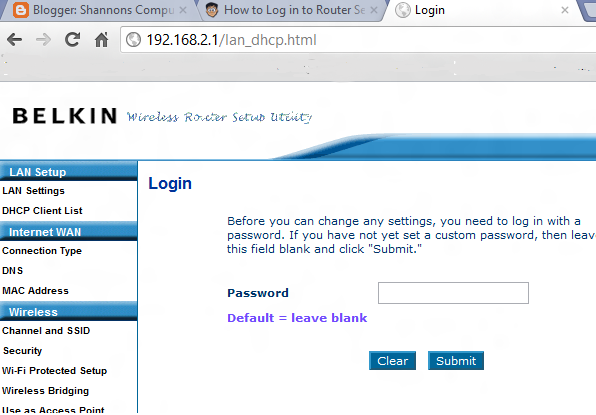
If you enter your router IP address and you're prompted for a Username and Password, that's great!! You're one step closer to accessing your router settings and securing your network.

Belkin Router Login page

Enter in the default Username and Password. This is where you may have to experiment. Some router manufactures make the default Username as Admin and Password as Admin. It may be the router manufacture name (like Belkin) and password of Admin.

Again Answersthatwork has this listing for the default usernames and passwords.


Netgear Router Settings
If you're still unable to login to the router web page, it’s possible that you may need to reset your router back to factory settings to regain access with one of the default IP address/username/password combinations above. 


That’s usually about as easy as finding a depressed button in the back of the router that’s labeled “Reset,” and pressing it with a pen for 30 seconds. try going back to step 2 above and try to log in again.

Once you've logged in successfully in the routers web page you can access several administrative settings concerning your home network. These settings include your network security and password, SSID Name (the name you give your home network), the list of current 'clients' or computers accessing your home network and other functions.

One of the first recommendations I give customers when setting up and configuring wireless networks is ensuring their network is secure with a password. That is typically found under the Security tab on the web page.

The web pages will differ slightly from one manufacture to the next. For more assistance I recommend referring to the support page of the router/modem manufacturer.


Here are a few links to popular router/modem manufactures.

Apple Airport
Belkin
D-Link
Linksys
Netgear
Western Digital

This article originally published 7/7/2012 - SL

Saturday, December 19, 2020

How To: Two-Factor Authentication

Security: 

The word often makes us feel all warm and fuzzy inside.

We want to feel safe and secure. We buy security cameras when want to feel more secure in our homes. We use passwords for sensitive websites such as banking and utilities.

But just how secure is that password you use? 

Better yet, when was the last time you changed it?

Is it complicated or does it start with the word 'Password' and end with '12345'? 😀

One of the more secure ways to prevent others to try to gain access to your email and banking websites is to use "Two Factor Authentication" or 2FA.

Two Factor Authentication adds an additional layer of security to your accounts on the internet. Whether it be email, a social website, banking account or any other sensitive web page, Two Factor Authentication prevents those accounts from being hacked.

The two parts of the authentication is:

1. Your password

2. The code which the website or the application sends to your device. Such as your phone or tablet. This is the key to Two-Factor Authentication. A second electronic device.

How it works:
When you log in to a service account or webpage, you use your mobile phone to verify your identity by either clicking on a texted / emailed link or typing in a number sent by an authenticator app.


Authentication apps are the standard to receive authentication codes. Such apps as Authy and Google Authenticator.

Authy is available in multi platform OSs. Besides Android t's available in Windows, Mac, Chrome and iOS.

Tuesday, December 15, 2020

Tech News: US Dept Of Treasury and Dept Of Commerce email servers breached by Russian hackers

 In one of the most sophisticated and perhaps largest hacks in more than five years, email systems were breached at the Treasury and Commerce Departments. Other breaches are under investigation.

Russia-backed hackers infiltrated internal email systems at the US Treasury and Commerce departments, and were spying on email communications for months, possibly as far back as March.


The attacks, first reported by Reuters on Sunday, was apparently carried out by hackers from the SVR, Russia's foreign intelligence service.  In truth, no one knows where the damage ends; given the nature of the attack, literally thousands of companies and organizations have been at risk for months

The White House National Security Council, which reportedly held an emergency meeting on Saturday, said via spokesperson John Ullyot on Monday that it is collaborating with CISA, the FBI, and the intelligence community to respond with "a swift and effective whole-of-government recovery."

Original Article at https://www.wired.com/story/russia-solarwinds-supply-chain-hack-commerce-treasury/

Thursday, October 29, 2020

Tech News: FBI warns ransomware threatens healthcare sector

The FBI, Cybersecurity and Infrastructure Security Agency (CISA), and US-CERT (Computer Emergency Readiness Team.... a branch of Homeland Security) issued a joint alert which stated they had credible information of "an increased and imminent cybercrime to US hospitals and healthcare providers".

The alert stated malicious groups are targeting the public healthcare sector with the purpose of "data theft and disruption of healthcare services".

Ransomware is an specific attack on systems, servers and networks to scramble data and to literally hijack the data until the clients pay up. It may be found on personal PCs as an individual pop-up stating your computer has been infected and to "click here" to remove the infected file. 

However the moment you click on the pop up, a file lurking in the background starts scrambling and locking your data. The pop-up then gives you a notice to contact a phone number to remove the so called "infected" files..... which in reality your paying for tech support to unlock your files...... it's a very evil scheme.


Since the early 2000s, groups have been deviating from private individuals to targeting larger corporations for bigger pay. Major corporations (Norsk-Hydro/Lockergoga in 2019) and entire city governments (Atlanta/SamSam in 2019) have been attacked by ransomware.

A total of 59 U.S. health care providers or systems have been impacted by ransomware in 2020, disrupting patient care at up to 510 facilities.

The alert was posted so healthcare providers, IT and network administrators, can take necessary steps to protect their networks from such attacks.

Wednesday, February 12, 2020

The Billion Dollar Business Of Data Collection - Part II - Securing and/or Removing Access to Your Data

This is Part 2 of a 2 part article 

Part I here

Privacy
We all value our privacy and for obvious reasons we're not going to post our bank account, address and social security numbers on the internet. 


However, you may be surprised or maybe even shocked on just how much information about you can be found on the internet. 

Just drop your name on 'Thatsthem.com', 'Spokeo.com' or any other 'People Search" websites and you'll find information about yourself likely you'd rather not have public. 

A common thought is that once it's on the internet it's out there forever. 
But to a certain extent you can delete some of that information, or at least have it not available to the public. 

Limit your information on social websites
Social websites should be the first to limit your info. When applying for a job, often employers will drop in on Facebook or Twitter to determine just really who they could be hiring. 

Having a social account is one thing, but posting on Facebook about Fridays party with a picture of your best friend next to the toilet is another. 
Better yet, select and edit your privacy settings within Facebook..... choose WHO YOU WANT TO SEE YOUR POSTS. 
Check out the Facebook Privacy settings here. 
Facebook Privacy Settings

Twitter has a basically on/off approach when it comes to privacy and 'Tweets' 
Either the 'tweets' you post can be public or private. 
Twitter Privacy

Under the Safety section within Twitter settings, you have the option to prevent your tweets appearing in the search results of those you have blocked on the microblogging platform.


Google 
Make sure you visit your Google Account page, where there are a number of settings that can boost your privacy, reduce data collection, or remove you altogether from the searches. Privacy checkup: 

The Google Privacy checkup allows users to prevent Google from saving your searches and other Google activity to your Google Account, as well as turn off your location history. 


You can also choose to disallow Google from saving YouTube search & watch history and a record of videos you have watched, your contacts, device information, voice and audio activity including recordings harvested from interaction with Google Assistant, and other data. 


'Opt Out' from data collection firms
One of the more permanent actions to take to have a third party service remove your data from data collection sites. Two such services are Onerep.com and Deleteme.com.
Both services will conduct 'Opt Outs' for data collection firms. It's a tedious and time consuming but worth it when it involves your privacy.


Remove personal information from websites
If someone's posted sensitive information of yours such as a Social Security number or a bank account number and the webmaster of the site where it was posted won't remove it, you can send a legal request to Google to have it removed.

Google Data Removal Request

Depending on what kind of information/data we have of ourselves out there on the net we have to take certain steps to restrict, completely remove access, or totally delete that information.

Monday, January 27, 2020

Tech News: The Billion Dollar Business Of Data Collection - Part I

This is Part 1 of a 2 part article

Information is valuable....Personal data is worth billions.

Nearly every moment of our lives, we’re producing data about ourselves that companies profit from. Billions worth.

Personal data is often compared to oil—it powers today’s most profitable corporations, just like fossil fuels energized those of the past. But the consumers it’s extracted from often know little about how much of their information is collected, who gets to look at it, and what it’s worth. 
Every day, hundreds of companies you may not even know exist, gather facts about you, some more intimate than others. That information may then flow to academic researchers, hackers, law enforcement, and foreign nations—as well as plenty of companies trying to sell you stuff.


How is our data collected?
Our smartwatches know when we wake up, 
Alexa and Android Assistant listens to our conversations, our phones track where we go, Google knows what we email and search, Facebook knows what we share with friends, and our loyalty cards remember what we buy. 
We share all this data about ourselves because we like the services these companies provide, and business leaders tell us we must to make it possible for those services to be cheap or free.

In 2018 the nonprofit news organization ProPublica conducted an investigation on how medical devices obtain data. This data includes heart rates, sleep patterns, the number of steps taken in a day — and patients have been shocked at the ways that information is being used.


According to the investigation, the data that’s constantly collected by step counters, blood glucose monitors, medication alerts and trackers, in-home cameras, heart monitors and CPAP breathing machines is being packaged and sold for advertising, anonymized and used by IT companies, and even shared with health insurers, who can use it to deny reimbursement.

Facebook’s business has relied on the trade of data for free service since they started it in a dorm room nearly 15 years ago, but due to the Cambridge Analytica scandal, only recently it's has shown users about just how this works.

As a typical CEO, Mark Zuckerberg describes this as a win-win – people stay in touch with friends and family more often through a free service, and businesses can more efficiently spend marketing dollars to fuel corporate profits, making Facebook free to all.

But one party has benefited a lot more than anyone else: Facebook shareholders. 

Despite all the recent controversy, Facebook is still valued at nearly $500bn.

What Constitutes "Personal Data"?
“Personal data” is a pretty vague umbrella term, and it helps to unpack exactly what it means. Health records, social security numbers, and banking details make up the most sensitive information stored online. 
Social media posts, location data, and search-engine queries may also be revealing but are also typically monetized in a way that, say, your credit card number is not. Other kinds of data collection fall into separate categories—ones that may surprise you. Did you know some companies are analyzing the unique way you tap and fumble with your smartphone?


All this information is collected on a wide spectrum of consent: Sometimes the data is forked over knowingly, while in other scenarios users might not understand they’re giving up anything at all.


Who Buys, Sells, and Barters My Personal Data?
The trade-off between the data you give and the services you get, may or may not be worth it, but another breed of business amasses, analyzes, and sells your information without giving you anything at all: data brokers.

These firms compile info from publicly available sources like property records, marriage licenses, and court cases.
They may also gather your medical records, browsing history, social media connections, and online purchases. Depending on where you live, data brokers might even purchase your information from the Department of Motor Vehicles. Don’t have a driver’s license? Retail stores sell info to data brokers, too.

In part 2 we'll read what choices you (the consumer) have and what you can do about it.

Thursday, December 12, 2019

Tech News: How hackers are breaking into Ring security cameras

Hackers have created dedicated software for breaking into Ring security cameras, according to posts on hacking forums reviewed by Motherboard (Tech Site). The camera company is owned by Amazon, which has hundreds of partnerships with police departments around the country.

An incident that occured Wednesday in Desoto County Tennesee, found a mother of an 8 year old extreemly shaken after finding the Ring security camera was hacked into and the hacker spoke through the device's speakers with one of the children.

Local news agency WMC5 shows the video (courtesy of the family) what the hacker would have seen: A view of the entire room from where the camera is installed in a far corner, looking down on their beds and dressers while they play. The hacker is heard playing the song "Tiptoe Through the Tulips" through the device's speakers, and when one of the daughters, who is eight years old, stops and asks who's there, the hacker says, "It's Santa. It's your best friend."
Their camera now sits disconnected on their kitchen counter.


Owners of Ring security cameras in Mississippi, Georgia, Florida and Texas have reported incidents where hackers tormented families with racial slurs, encouraged children into destructive behavior and demanded a ransom in Bitcoin.

A few security measures to consider:
Like most IP security cameras, Ring cameras rely on your homes wireless internet connection. However this is easy to hack into as most logins,usernames and passwords are very weak. It's recommended to change the login info to stronger username and passwords.

For increased security make your home Wi-Fi so it's not visible to others. For your security camera apps (which are downloadable to your iPhone or Android phone) ensure Two Factor authorization. This incorporates having the app send a text with a code you enter during the login procedure on the camera app.

Saturday, December 3, 2016

Tech News: Over 1 million Android phones hacked

Over 1.3 million Google accounts, which include photos, documents and email have been accessed by hackers by way of apps which were not available on Google Play Store.

Checkpoint, a cyber security firm, has named the hacking campaign "Googligan" and has set up a website named "Googligan Check Point" for consumers to determine if their Google accounts have been hacked.

The infection begins when a user downloads and installs a Gooligan-infected app on a vulnerable Android device, or by clicking on malicious links in phishing attack messages. Checkpoint states the code is targeted towards Android devices which have The Jelly Bean, Kit Kat, and Lollipop versions of Googles operating system.


Google has since removed the apps from thier Play Store, which contain the malicious code. However the attacks are still prominent as 3rd party websites still list apps that contain malware.


Android users have the option to download unofficial apps from 3rd party vendors and websites, but it is advised not to due to incidents like these.

Sunday, January 24, 2016

How to: Removing malware, viruses and spyware

Often malware, the overall term for any virus, worms, spyware, and adware, is installed and can infect a users system without their knowledge. By the time it's realized a system is infected, a system can have constant pop-ups, is slowed to a crawl when accessing files, unable to access or even leave specific web pages, or worse... you're not even able to access the internet at all.

The steps in removing malware are standard throughout the computer industry.

1. Enter Safe Mode
On a Windows system, Safe Mode is a diagnostic tool that includes only the minimum drivers needed to boot your system safely to the desktop without any settings or problematic software interfering. Once there, you can troubleshoot further, to eliminate the problem and boot the system normally again.

The following steps apply for Windows XP through Windows 8. If you have a Windows 10 machine, check out the PC Worlds' video how to enter Safe Mode here.

   a. Turn on (or reboot) your computer.
   You can find Safe Mode in your Advanced Boot Options menu.
   b. Wait for the computer to initialize the hardware and prepare to load the operating system.
   c. Press and hold the F8 key while you wait for the Windows logo to appear. if the Windows logo appears or if the operating system begins to load, you may need to restart the computer and try again.
   d.The Advanced Boot Options screen for Windows will appear. Use the arrow keys on your keyboard to select Safe Mode, and press Return.
   e. If you need access to the Internet or network while in Safe Mode, select Safe Mode with Networking.
   f. Windows will boot into Safe Mode. When the desktop appears, it will display 'Safe Mode' in all four corners to let you know that you're in this special mode.

For Windows 10 getting to Safe Mode is a little different. Check out PC Worlds' video here.

Once you're in Safe Mode, you may find that Windows runs faster. This is usually a good indication that your system has some sort of malware or just alot of programs which are supposed to run in the background at startup.

2. Delete/Remove Temporary files
Before conducting a virus scan you'll want to remove temporary files. Doing this will speed up the scan of the antivirus software. To use the Disk Cleanup utility included with Windows, enter diskcleanup in the search bar at the Start Menu, or select Start, Programs, Accessories, System Tools, Disk Cleanup.

3. Download and install Antispyware/Antivirus software.
It's first recommended to install and run a program to remove spyware and adware first. A good tool for the job is Malwarebytes or Spybot Search & Destroy.

Then scan for antiviruses. There are a number of antivirus/antivirus software which come bundles with both antivirus, anti spyware that also scan for the entire malware spectrum. These commercial products such as Symantec or McAfee are known as 'End Point" software, are very reliable when detecting threats. Avg, Panda, and Kaspersky also provide well known products for removing viruses & spyware. The products come with a yearly subscription, however most of the companies offer a limited free version which scans for viruses only.

 Which provides the best protection? That my friends depends on who you ask. There are dozens of reviews on the internet. Just Google "Symantec vs Mcafee" ad you'll get a host of reviews comparing the two. CNET, PCworld and Techradar have some thorough reviews on antivirus/antispyware packages.

Whichever products you use, it's safe to say it's worth it to have your system stay clean and protected.

Thursday, October 15, 2015

How to: Hijackware - how to remove it

Hijackware

It's a term used for the nastiest and cruelest type of

 malware program. It alters your computer's browser settings so that 

you are redirected to Web sites that you had no intention of visiting. 


Sometimes it will appear that you have a virus, however your system is actually 
clean.
This threat shows up in the form of ‘Fake’ antivirus software and you won't be able to 
remove it until you click the link and download the product.


Hijackware advertisement


“Fake Antivirus” software is somewhat difficult to remove, but it can be done.


Here are the steps I recommend.


1. First boot into Safe Mode Using Network Connection (CTL-F8). this will 


prevent


 background processes from starting keep the adware/hijack ware from starting as 


well.

2. Get online and download and install 

MALWAREBYTES from WWW.Malwarebytes.org OR

http://download.cnet.com/Malwarebytes-Anti-Malware/3000-8022_4-10804572.html?part=dl-10804572&subj=dl&tag=button

This is a very good anti-spyware/malware program which will remove the 


hijackware from your hard drive directory as well as remove the entries from the 


registry.


3. Install the Malwarebytes program and run a FULL system scan. (the average 


time takes 20-40 min depending on your system)


4. After the scan has finished, click "Show Results", then click "Remove Selected"


5. After you have removed the hijackware, you'll have to restart you computer. 


Afterwards I would recommend downloading and installing AVG, Avira or another 


Antivirus software as well.


Thursday, November 6, 2014

How to: Whats the best software to remove adware, spyware and malware?

So you're surfing the internet, but you constantly are getting these annoying pop-ups to buy the latest free antivirus. You simply close the pop-up and continue on.
Or your computer seems t be running slow even after you cleaned out the trash folder and the hard drive appears to be very busy accessing files.

Or you're on Youtube and you get a pop-up which informs you that your Java needs to be updated. You try to close the pop-up but are unable to. You actually have close and restart your browser!

Three different scenarios typically caused by three separate malicious programs. To remove the unwanted programs, lets go over what each program actually does.

Adware is any software that, once installed on your computer, tracks your internet browsing habits and sends you popups containing advertisements related to the sites and topics you've visited. While this type of software may sound innocent, and even helpful, it consumes and slows down your computer's processor and internet connection speed. 

Spyware - Once installed on a system they run in background and keep on collecting user’s personal data. These data can include your credit card numbers, passwords, important files and many other personal stuff. CoolWebSearch is an example of spyware and is noted by Webroot as the most dangerous programs involving spyware.

Malware is short for malicious software. Malware is a pretty broad term that encompasses computer viruses, worms, 'Trojan horses', and others. Malware is designed to interfere with normal computer operation, usually giving hackers a chance to gain access to your computer. The Mydoom virus of 2004 was noted as the fastest attack of malware ever seen creating havoc across over 1 million computers around the world..

Windows Defender used to be a recommended program for removing adware and spyware. If you're running a Windows machine running Vista or later it comes pre installed. However it's lost out to other third party vendors as it does not offer the strong protection and is not as thorough as it used to be. So which security suite is recommended?


Top brands for antivirus / antispyware are Trend Mico, AVG, Symantec Norton, Panda or Mcafee.


Others not so well known are Bitdefender, Avira, Kapersky Lab and F-Secure.

Definition File
Any antivirus/antispyware depend on whats called a 'definition' file. This file essentially contains a list of virus signatures which have been caught on the internet. 

This list is then used by the software. Its important that the definition file is updated on daily basis. Most antivirus / antispyware software have this done automatically.

Whats the best one?
Two major independent firms test antivirus / antispyware to see where they stand against attacks and threats and how well they protect your system. AV Comparatives is one of the companies which puts each program through a battery of tests.


AV-test.org stress-tested these suites between September 2013 and February 2014. Here’s the virus detection rate of all of the suites. Larger numbers are better
Out of the 9 Antivirus/Antispyware programs Bitdefender, Kaspersky and Trend Micro all ranked the highest in protecting your system. Most of these companies release free or trial versions of their antivirus / antispyware programs. 


It's no guarantee that any of the programs that have performed well n the past will continue to do so, but one thing is sure......that viruses and spyware will continue to infiltrate the internet and attack computers worldwide, so it's best to have your computer protected and secure.


Tuesday, November 13, 2012

Age old computer priciples that have stood the test of time

Technology is always moving forward.
The next best thing is around the corner it seems. Hardware gets faster and operating systems are upgraded to the newest features (or we hope so). It's just a natural step in computing laws. But just because your 6-year-old Vista desktop is obsolete doesn't mean some computer advice ever does. Take the following list of age-old computing wisdom. Most of the principles apply today as they did 20 years ago.

When in doubt, punch out

If something isn’t working on your PC, don’t wring your hands and yell at the screen. Just restart the system. That simple act alone will fix many of the problems you may be experiencing. When your PC restarts, it clears out all the temporary files in the RAM and relaunches the operating system. This wipes away any files that may have been giving your PC fits—and the operating system starts fresh and unfettered by whatever was affecting it. If you want to do these things without restarting, click Start, then Run, and type %temp% into the command line.

Expect your battery to let you down

It's simply Murphy's Law: Your laptop or tablet will poop out the moment you need it most. That is life. Always bring your power cables with you on the road, and if possible invest in backup and secondary battery options.

Crowdsource your troubleshooting

Chances are, the help resources at your device manufacturer’s website won’t address your exact headache, but if you type an error message or problem you're having into Google, you'll inevitably find helpful information from poor souls who have encountered the very same issue.

Back everything up 

Never get caught with just one copy of anything that you want to keep. Always back up your data, and then back up your backups. Consider backing up both to an external drive and to a cloud storage service. It’s a good idea to keep separate system and data partitions—back up your data partition daily, and back up your system partition (Windows as well as your installed programs) at least quarterly.

Remember that thumb drives are your friends

It’s very easy to lose track of the recovery discs that come with a new PC, so keep a USB drive with recovery software on it in case something goes wrong. Store it away in a safe, easy-to-remember place. And in that same safe place, keep both electronic and print copies of all your software keys.

Look to last year’s model for a better value

Tech manufacturers always charge a premium for the latest and greatest hardware—and typically you don't really need the world's fastest processor, graphics card, or I/O technology. So do yourself a favor and consider buying hardware that was best-in-class during a previous manufacturing cycle. It will likely be heavily marked down, but still wholly capable and packed with performance.

Skip the extended warranty 

Don't be a sap. Extended warranties are designed to prey on your fear that the hardware you just purchased is already on its death bed. From a return-on-investment perspective, extended warranties almost never pay off—except for the companies that sell them.

Read the manual 

You might be surprised at what you can learn by reading user manuals. It’s natural to just jump right in and begin doing the things you expect a device or application to do, but I've found that by reading the manual I can learn about features and functions I didn't know existed. Reading the manual can increase the benefit you derive from your device, and make you feel a whole lot better about buying it.

Consider the total cost of ownership

This mostly applies to purchases of printers and subsidized phones. If you intend to do a lot of printing, pay close attention to the cost and efficiency of consumables, namely the ink or toner. And if you're investing in a new smartphone plan, consider what you'll be paying month to month...to month...to month...

Resist the urge to impulse-shop

A tech geek is never more dangerous than when perusing the aisles of a brick-and-mortar hardware store. If you absolutely must purchase a new toy in person, make sure to do your research beforehand. Don't be swayed by the razzle-dazzle of salespeople, and arm yourself with deep product knowledge before you enter a store. Also, always ask the retailer to match lower Internet pricing, if you can find it. (You'll want to bring your smartphone with you.)

Keyboard shortcuts: Use them, live them, love them

You can work far faster (and look way cooler) by mastering keyboard shortcuts for the programs, services, and operating systems you use every day. To learn these shortcuts, check out PCWorld's numerous articles containing keyboard shortcuts for every major OS and many popular applications. Get started with Windows 7 shortcuts.

Keep your software up-to-date

The message windows reminding you to update your software can get annoying, but it’s a good idea to stop what you’re doing and click the 'Update now' button. You'll get the all the functionality the software has to offer, and you'll also obtain vital security patches that can protect your system from software crashes and data loss.


Hide those cables

The tangled mess of cables and wires under your desk will only get worse and worse—and you won’t realize how much it bugs you until you finally clean it all up. You can bundle groups of wires by running them through toilet paper tubes, or binding them with pipe cleaners or small bands of Velcro, and then use binder clips to tie the bundled wires to the underside of your desk, or any place where they’re out of sight.

Stay wired when you want to connect

Wired ethernet will always be faster and more reliable than wireless networking. If you regularly do something (for work or play) on your home computer that relies on a constant Web connection, you may be better off using a wired Internet connection. Wired connections are capable of far faster data speeds and are simply not subject to the many factors that can disrupt a wireless connection.

Put your router in the middle

Position your wireless router as close as you can to the center of your home. This action can help ensure that all the wireless devices in your home are within range of the access point. You’ll also find that the signals coming from your router are more likely to reach their destination if the antenna is elevated off the floor a few feet.


Investigate crashes

If your PC seems to crash frequently, the Windows Reliability Monitor (Control Panel > System and Security > Action Center > Reliability Monitor) can help isolate the cause. The utility keeps track of all hardware and software crashes and warnings, organizing them by date. By clicking on one, you can see the full details of what happened.

For gamers: Update your drivers

Confirm whether you have the latest drivers for your PC's graphics and sound hardware. Game developers create their titles using the latest features and functionality in graphics cards. If you’re using older drivers, your graphics card might not be up to the task of rendering the game properly on screen.

Take a screenshot

Save a screenshot (or snap a photo and save it to Evernote) of every weird problem or crash you see. Having an image can help immensely if the problem becomes chronic and you need assistance in fixing it.

Change your router's default SSID

The easiest thing you can do to improve the security of your wireless network is to change both the login and the password for your router to unique alphanumeric phrases that only you know. Since finding the default login and password for almost every router on the market is child's play online, leaving your router at the defaults allows anyone to gain access to the wireless network in your home or small business.

Clear your cookies

Erase your browsing history and even better, enable the Do Not Track feature on your browser. This feature will send a message to the websites you visit that it is not okay for them to install cookies in your browser that will record your movements around the Web. Unless you want that to happen, of course.

The best tip of all: Take a break

Every so often, take an technology sabbatical. Go 24 hours without looking at a screen. It's good for your eyes, and it reduces the chance of burnout. It also reminds you of how powerful personal computers of all shapes and sizes have become—and that thought alone might make everyone a little more tolerant and patient when problems arise.