Monday, January 16, 2023

Tech History: How the term 'debug' came about

Today, the term 'debug' means to identify software or hardware errors. 
But why the word 'debug' and what do bugs have to do with computers anyways?

Well, history shows what really happened.

Back in September of 1947 the US Navy was testing it's newly built Mark II Aiken Relay Calculator for ballistic tables.

Located at Harvard University, this electromechanical computer was nothing to what we use today. The machine over 20ft in length and weighed over 5 tons.
It was an electromechanical behemoth!

Physicist Dr. Howard Aiken and Dr. Grace Hopper worked together to design, build and program the machine.


Dr Aiken and Dr Hopper worked well as a team. Grace would write the technical manual and assist Howard with maintenance and hardware of the Mark II. 


Both Mr Howard Aiken and Mrs Grace Hopper were working on the machine when she found a moth stuck in one of the relays, impeding the operation of the machine.


So now you know "the rest of the story" ;-)

Originally posted 10/29/16

Sunday, January 15, 2023

How To: Receive text for an appointment on your Google Calendar

Years ago when you made an appointment on your Google Calendar and you had SMS notifications enabled, you would receive a text on your phone of that appointment .

This was the best thing since sliced bread in my opinion.

For some unknown reasons in 2015, Google decided to no longer offer SMS notifications for appointments on your Google Calendar. Bye Bye SMS notifications.
It was a "Why did you do that?!" moment.

But not to fret. The world is not ending....and you can still receive SMS/text messages of any appointments on your calendar.

You just have to go a round about way of setting it up. 
Basically we forward the calendar appts to Gmail.... then forwarding the Gmail as a SMS to your phone.

We'll be working on the Desktop version as it's the easiest working while in Gmail.


Phase 1

First, we want to have Google Calendar send notifications to Gmail. 
This is straightforward.
1. Inside Google Calendar, click Settings (it's the gear in the upper right)

2. Now, scroll down to your calendar and click 'Share with specific people'


3. Here you want to enter your email address.....
4. Right below you want to Add Notification.... and using the drop-down menu, select email... and then select the number of days out you want the notification to occur.

Okay... so now you're set for having Calendar forward notifications to your email. Now lets log into your Gmail where we'll forward the email you receive from Calendar as an SMS message to your phone.

Phase 2
1. Within Gmail, select settings (The gear in the upper right corner)
2. Click 'Settings' (ironic I know)
3. To add a forwarding address, click 'Forwarding And POP/IMAP'
4. Click 'Add A Forwarding Address'...
5. In the box here is where you enter your email address OF YOUR PHONE.
AT&T                 10digitphonenumber@txt.att.net
Cellular One      10digitphonenumber@mobile.celloneusa.com
Sprint                 10digitphonenumber@messaging.sprintpcs.com
T-Mobile             10digitphonenumber@tmomail.net
US Cellular         10digitphonenumber@email.uscc.net
Verizon               10digitphonenumber@vtext.com
Virgin Mobile      10digitphonenumber@vmobl.com
Follow the prompts to complete adding a forwarding address.

6. Select 'Filters And Blocked Addresses' (we have to create a filter first in order to forward it)

7. Scroll down to the bottom and click 'Create New Event'

8. In the 'From' field in the new window type  calendar-notification@google.com 
(This lets Gmail know to filter and fwd any email you get from this address)
9. Click 'Create Filter' 
10. In this window is where the magic happens..... you have several options here, but the most important is the 'Forward To' line. Use the drop down to select your forwarding phone email (We created that in Step 5)


11. Click 'Create Filter' and that's it. 
Your appointments that are in Google Calendar will be forwarded to Gmail. There Gmail will forward it to you phone as an SMS/Text message.

You may want to test it out. Create an appt within Google Calendar and open Gmail to view the email from calendar-notification@google.com. 

In a few minutes you should receive a text of the appointment. Trace the steps again if you don't get the text.
Originally published 2/18/20

Monday, January 2, 2023

How to: Accessing your router web page

Most customers I come across know an open unsecured network is an invitation for others to waltz and access your network at ease. And by saying that they realize how important it is to have a secured wifi network.

However there are some home networks I stumble across that are WIDE OPEN with no WPA security password AT ALL.

It's the electronic equivalent of leaving your front door open. 

More over may have the ability to access your documents on your laptop/desktop if file & print sharing is enabled. To prevent such an infiltration of unwanted hackers and visitors snooping around your network needs to be secure. This means setting up a password on your network via the router settings web page. 

Take a deep breath...it's fairly simple and takes about 10 minutes to do.


First determine what brand router you have. Likely it's one of the main brand one's such as Linksys, Cisco, Belkin, DLink, or Netgear. You may have to look under the router for the make/model.

Open your favorite web browser. Enter in the IP address of your router. This depends of what brand router you have, however it's very likely either 192.168.0.1 or 192.168.1.1 or 192.168.2.1. 

Answersthatwork has a great listing of IP addresses, default user names and passwords for most routers out on the market.

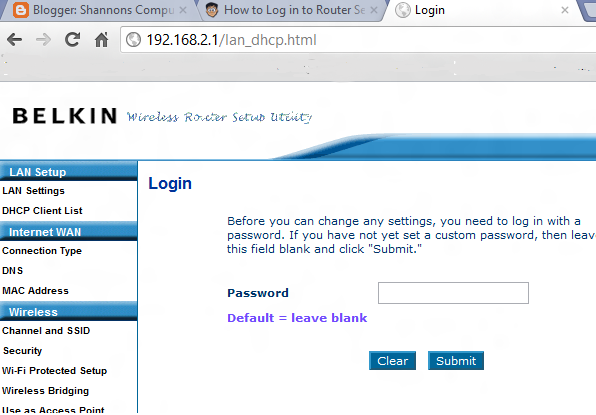
If you enter your router IP address and you're prompted for a Username and Password, that's great!! You're one step closer to accessing your router settings and securing your network.

Belkin Router Login page

Enter in the default Username and Password. This is where you may have to experiment. Some router manufactures make the default Username as Admin and Password as Admin. It may be the router manufacture name (like Belkin) and password of Admin.

Again Answersthatwork has this listing for the default usernames and passwords.


Netgear Router Settings
If you're still unable to login to the router web page, it’s possible that you may need to reset your router back to factory settings to regain access with one of the default IP address/username/password combinations above. 


That’s usually about as easy as finding a depressed button in the back of the router that’s labeled “Reset,” and pressing it with a pen for 30 seconds. try going back to step 2 above and try to log in again.

Once you've logged in successfully in the routers web page you can access several administrative settings concerning your home network. These settings include your network security and password, SSID Name (the name you give your home network), the list of current 'clients' or computers accessing your home network and other functions.

One of the first recommendations I give customers when setting up and configuring wireless networks is ensuring their network is secure with a password. That is typically found under the Security tab on the web page.

The web pages will differ slightly from one manufacture to the next. For more assistance I recommend referring to the support page of the router/modem manufacturer.


Here are a few links to popular router/modem manufactures.

Apple Airport
Belkin
D-Link
Linksys
Netgear
Western Digital

This article originally published 7/7/2012 - SL

Monday, December 12, 2022

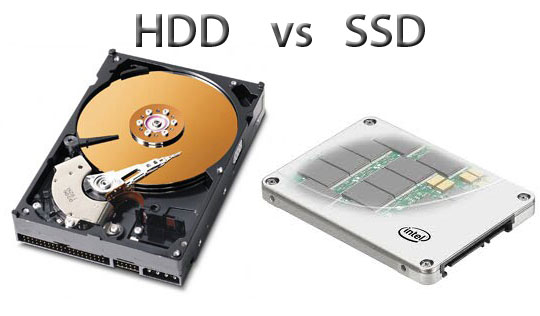
Advantages of a SSD over HDD

There are huge advantages switching from a Hard Disk Drive (HDD) to a SSD or Solid State Drive.

Advantages of SSDs:

Boot up time: A computer which has a HDD (Hard Disk Drives) has to wait for the disks (platters) to spin up to a specific rpm in order to read data.....usually 5400 or 7200 rpms. SSD contain flash (NAND) memory which is almost instantaneous when it comes to reading the operating system.

No Wear & Tear: A HDD contains moving parts.....the spinning disk or 'platter', the read/write armature or arm ...etc. These mechanical parts over time will wear out the more it is used. SSD's are made of flash memory which has no moving parts.

No Noise: Because SSDs contain no moving parts they are virtually silent compared to the noisy HDDs. 

Cooler: Physics tell us that moving parts against each other cause friction....thus making heat. 
Because of this, HDDs make alot more heat than SSDs. That's why many Chromebooks and netbooks have no fans as they use the cooler SSDs.

No fans mean less power usage....less power means more battery lifetime...see where I'm going with this?


Speed / performance: On a HDD, files get erased and new files are replaced over a period of time. Eventually parts of one single word document are all over the hard drive. The read/write head must search the HDD for the entire file.


This is called 'fragmentation'. Reading files across an entire platter or disk takes time. In SSD there is no read/write head so data can be stored anywhere and access is almost instantaneous.

Disadvantages of SSDs:

Price:
One of the disadvantages of SSDs is that the price per GB is 15-20 cents more than a HDD.
That means a 1TB SSD costs $200-$230 compared to a HDD of the same size which costs only $40-50.

Memory Wear Out:
One of the hottest discussions in the tech industry concerning SSDs is 'memory wear out'.
Flash memory is measured in write cycles, or program/erase (P/E) cycles. Because of the inherent nature of flash memory, the lifecycle of SSDs are limited in the number of times data is written.

When data is written on a block of memory, the entire block must be erased first. Depending on the type of NAND memory of the SSD, the write cycles may be from 30,000 writes to 100,000 writes.
Don't stress over this too much. A technology called "wear leveling" ensures data is written over a broad spectrum of memory blocks on the SSD so not one single block gets hit. Writing to a single block of flash memory 30,000 times would be the equivalent of you sitting at your laptop and pressing the "Enter" key 1 thousand times a day for an entire month.

The future of storage

Solid State Drive technology is evolving quickly with different types of memory storage. SLC, MLC, TLC are different types of NAND, which is a type of flash memory that retains memory when the power is off.
Samsung and Intel are working on 3D NAND, and Intel may soon boast the worlds largest SSD at 10GB with the new technology.

Hard disk drives are still the king when it comes to size and price, however as SSDs become cheaper, expect more to show up on systems and will soon to overtake HDDs.
It's expected next year that 41% of laptops to arrive with SSDs and are expected to overtake HDDs by 2018.


Originally published on 11/24/16

Friday, November 12, 2021

Windows 11 has arrived!! (or will be coming to a computer near you)

You've heard about it. It's been in the tech news since June when Microsoft announce the latest version of Windows. 

Yes.... the folks over in Redmond did say Windows 10 was to be the last version of Windows as a "Windows As A Service" feature, but hey everybody likes "new and improved"!!

New and improved Windows 11 is.... and yet, in some ways it isn't. It's like a brand-new paint job on your 2010 sports car, the engine still runs decent, but it needs a tune-up. 

Windows 11 has a very sleek, clean look, but underneath there are still some bugs. 

Windows 11 Start Menu

One of the slickest options within Windows 11 is the Snap Layout. This enables individual windows to "snap" to a side or corner of your preference.

Granted, this was in previous versions of Windows, but slightly clumsy using the arrows on your keyboard and the "Windows" key.

The Taskbar icons are centered at the bottom as the default. If you like the old style at the bottom left you can change this within the Taskbar Settings. Right Click on the Taskbar to do this.


There are issues and bugs concerning this latest release of Windows. Many have to do with hardware, processor and printer issues.

This page describes many Windows 11 bugs.


The biggest issue many have is with Windows slowing down AMD Ryzen processors. This is a known issue with the L3 cache on the processors. AMD has released a chipset driver update and Microsoft released an update to address the L3 cache issue.
*Follow directions closely concerning these updates and issues.

Personally, I have been using Windows 11 for about 3 weeks now and have had just a few minor issues. (Daylight Savings Time not updating was one issue)

So if you're looking to install Windows 11 on your system, review and check to make sure your hardware supports it. Do your homework, and backup your files before taking the plunge.


Here are Microsoft's requirements for windows 11.

Your device must be running Windows 10, version 2004 or later, to upgrade. Free updates are available through Windows Update in Settings>Update and Security.

* Processor1 gigahertz (GHz) or faster with 2 or more cores on a compatible 64-bit processor or System on a Chip (SoC).
* RAM4 gigabyte (GB).
* Storage64 GB or larger storage device Note: See below under “More information on storage space to keep Windows 11 up-to-date” for more details.
* System firmwareUEFI, Secure Boot capable. Check here for information on how your PC might be able to meet this requirement.
* TPMTrusted Platform Module (TPM) version 2.0. Check here for instructions on how your PC might be enabled to meet this requirement.
 
Microsoft also has a convenient program to check if your system is compatible. You can download it here.