Tuesday, November 17, 2015

Questions when purchasing a new computer

The holiday season is upon us and many will be flocking to the nearest Best Buy or online to purchase a new system as a preset or for themselves. 

As you wander over the variety of desktops and laptops, several questions may come into mind when buying a new computer.

How much memory (RAM) do you need? 
What kind of processor comes with it?
Do you want a laptop, desktop or hybrid? 
An all-in-one system or a desktop that that you can upgrade the internal components for? 

To answer these questions it all comes down to one thing. - 
"What do you plan to use the system mostly for?" 


* Light use: Surfing the Web, paying bills online, e-mail and social networking, organizing and sharing digital photos 
* Average use: Storing and streaming music and movies, tasks like spreadsheet and document creation 
* Demanding use: Serious gaming, sophisticated graphics and photo editing, video production, high-resolution multitrack audio recording 


 If your new computer will live in an isolated location like a dedicated home office, a traditional desktop may be ideal. If, however, your computer will be in a more centralized location for family use, a compact desktop or stylish all-in-one PC may be more suitable. Consider a portable all-in-one or smart display if you want the option to take it places.


Planning on heavy duty gaming?
Most computers come standard with "integrated" graphics, meaning that the graphics processor is built into the chipset that houses the main processor. This is more than sufficient for general computing, but some applications require more imaging power. If your plans involve multiplayer 3D gaming, video editing or multimedia production, you'll probably want a standalone graphics card to make the most of your experience.


Monday, November 2, 2015

How to: Windows 10 - uninstalling Apps and programs

In older versions of Windows, uninstalling a program wasn't all that straightforward -- you had to go through the Programs and Features menu in the Control Panel. But in Windows 10, uninstalling a program (either a desktop program or a Windows 10 app) is much simpler.

Here are three different ways to uninstall an app or a program from your Windows 10 PC:
From the Start menu
You can uninstall both Windows 10 apps and traditional desktop programs directly (er -- sort of directly) from the Start menu.

To do this, go to Start > All apps and find the app or program you want to uninstall. Right-click on the app or program and click Uninstall from the drop-down menu that appears. If you don't see Uninstall in the dropdown menu, the app may be a default app, in which case you'll need to follow this guide to uninstall it.

If you're uninstalling a Windows 10 app, you'll see a pop-up window telling you the app and its related info will be uninstalled. Hit Uninstall to complete the uninstallation.

There's another way to uninstall apps that might not be too obvious. Swipe in from the right side of the screen and tap 'All settings.' Select System and then tap Apps & features. You can sort the list of apps by size, name, or install date. If you would like to uninstall an app, select it from the list and then tap or click the uninstall button.


If you can't find the app or program you want to uninstall in the Start menu, you can also uninstall apps and programs via the Settings menu.

Open the Settings menu (Start > Settings) and go to System and then click Apps & features. Here, you'll see a list of the apps and programs on your PC, sorted by size. You can use the search box at the top of the screen to search for apps, and you can resort the list by name or by install date.


Find the app or program you want to uninstall, click it, and then click Uninstall. It doesn't matter if it's an app or a desktop program this time -- you will see a pop-up window informing you that the app and its related info will be uninstalled. Hit Uninstall to complete the process (you may also see a pop-up asking if you want to let this program make changes to your computer, hit Yes to proceed).
From the Control Panel

You can still uninstall programs -- but not Windows 10 apps -- directly from the Control Panel. To do this, right-click the Start button and click Control Panel. Go to Programs and Features (if your Control Panel is in Category view, go to Uninstall a Program). Find the program you want to uninstall, click it to select it, and then click Uninstall. You'll see a pop-up window asking if you're sure you want to uninstall this program, click Yes and click through the uninstall wizard, if applicable.


Thursday, October 15, 2015

How to: Hijackware - how to remove it

Hijackware

It's a term used for the nastiest and cruelest type of

 malware program. It alters your computer's browser settings so that 

you are redirected to Web sites that you had no intention of visiting. 


Sometimes it will appear that you have a virus, however your system is actually 
clean.
This threat shows up in the form of ‘Fake’ antivirus software and you won't be able to 
remove it until you click the link and download the product.


Hijackware advertisement


“Fake Antivirus” software is somewhat difficult to remove, but it can be done.


Here are the steps I recommend.


1. First boot into Safe Mode Using Network Connection (CTL-F8). this will 


prevent


 background processes from starting keep the adware/hijack ware from starting as 


well.

2. Get online and download and install 

MALWAREBYTES from WWW.Malwarebytes.org OR

http://download.cnet.com/Malwarebytes-Anti-Malware/3000-8022_4-10804572.html?part=dl-10804572&subj=dl&tag=button

This is a very good anti-spyware/malware program which will remove the 


hijackware from your hard drive directory as well as remove the entries from the 


registry.


3. Install the Malwarebytes program and run a FULL system scan. (the average 


time takes 20-40 min depending on your system)


4. After the scan has finished, click "Show Results", then click "Remove Selected"


5. After you have removed the hijackware, you'll have to restart you computer. 


Afterwards I would recommend downloading and installing AVG, Avira or another 


Antivirus software as well.


Friday, November 28, 2014

Thinking about buying a Chromebook?

Chromebooks are cool, they're light weight...and they're fast....much faster than their Windows counterparts.

Chromebooks boot up in 10 seconds or less. 
This is in comparison of a Windows 10 machine. A clean Windows 10 with minimum startup processes, have an average boot time between 45 seconds to 1:30. Of course this boot time for Windows depends on the type of processor and amount of RAM involved.

You're probably saying "Wow!...a 10 second boot up time! I'm replacing my laptop with a Chromebook!"
WHOAA partner....not so fast. 

The speed of a Chromebook comes with a price....and I'm not talking money (they're actually very inexpensive). Chromebooks are a different breed altogether.

Traditional operating systems like Windows, Linux, and Mac OSX require a large portion of the computers hard drive in order to run. The Chrome OS is built on the Linux kernel*, however everything is done on the Chrome browser. It's a web app driven OS.

Remember when I said Chromebooks are lightweight? 
Because everything is done online (in the "cloud"), Chromebooks don't have a ton of storage.
Most have 16GB of SSD Hard Drive space with 2-4GB of RAM to play with.

That's not much compared to full fledged Windows laptops that usually boast 900GB hard drives and 4-8GB of ram. However storage on a Chromebook can always be expanded when adding an external Hard Drive or USB drive.
Concerning processors most Chromebooks have Celeron chips, which is Intels' budget

Anything you can do online, you can do with a Chromebook.
Checking your email....your bank
account....Facebook....Twitter....Youtube.....Yahoo.....checking up on the news or your stock portfolio. Working online and offline with word documents, spreadsheets and presentations are done with Google docs as well.

Chromebooks are optimized for Googles Web Store where there are plenty of browser extensions, web apps, and games.
Web Store for Chrome OS
You'll be able to play classic games like "Cut The Rope" and "Bejeweled", but because of the light graphics processor, you won't be playing any major game hits that are on Window PCs. Google is currently updating the Chrome OS so Android games on the Play Store will be accessible on Chromebooks.

The battery lifetime is where Chromebooks are king. Chromebooks average 10hrs of use on a fully charged system compared to a Windows PC which average 6-7hrs.

So if you're deciding on buying a Chromebook, the big question should be "What will you be using it for". Chromebooks are incredibly affordable and fast, and they come in a variety of sizes and spec, but they are limited in graphics processing power and onboard storage space. If you're looking at a second laptop just to get onlne, and you like Googles services, a Chromebook will work great for you.

*In fact, back in 2009, Canonical, Ubuntus parent company, worked very closly with Google in creating Chrome OS.

Monday, November 10, 2014

Tech News: Windows 10 Technical Preview is here!

Windows 10 has arrived! Well at least in the form of a beta test called "Windows Technical Preview"

So alot of people are wondering what happened to Windows 9?
Initially there was a theory that Microsft avoiding the "9" title due to possible issues with the programming language relating to previous Windows  95 or 98. Again...that was just a theory.

The official word from the Redmond software giant is that "Windows 10 is not going to be an incremental step from Window 8.1," he explained. "Windows 10 is going to be a material step. We're trying to create one platform, one eco-system that unites as many of the devices from the small embedded Internet of Things, through tablets, through phones, through PCs and, ultimately, into the Xbox." according to Tony Prophet, Microsoft's corporate vice president.
So MS is trying to distance itself from the unpopular Windows 8.

Downloading Windows Technical Preview
You can download the preview here, However a word of caution. Once you install the operating system, you cannot go back to Windows 8 without re installing.
That being said it's highly recommended to install this on a secondary computer which you don't have any valuable files you don't want to lose.

But the most obvious bit of advice here, of course, is: Back up first, and create a recovery disk. In Windows 7, you will use Windows Backup for both. In Windows 8.x, you may need a third party utility, though that Windows 7 backup is there too. (Search for File History and then click "System Image Backup" in the lower-left corner of the File History control panel.) Search for "recovery drive" to create a recovery drive.

Getting Started
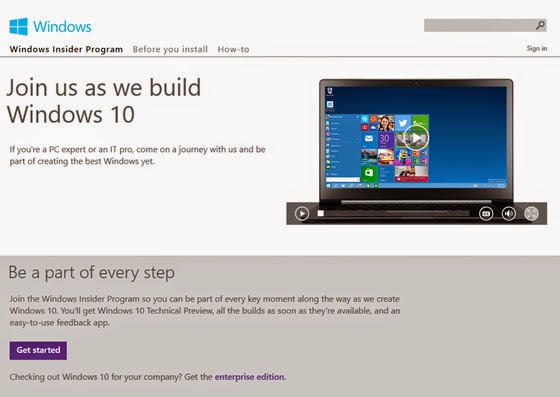
To install the Windows Technical Preview, you need to join the Windows Insider Program. So head on over to the Windows Insider Program web site and click the Get Started button.

You will find you have two choices of ISO files - a 32bit or a 64bit version.

If you're not sure which one to get, you can see which version you're currently using by right clicking 'My Computer' and clicking Properties. this will display your version of Windows. It will say "64-bit Operating System, x64-based processor" for 64-bit and "32-bit Operating System" otherwise. You will need the same type of OS version, especially if you're upgrading.

The ISO files are large, 3-4GBs. There's a few ways to install this on your system. Either by DVD, a USB drive or via a 'Virtual Machine' such as sandbox.

If you decide on the DVD or USB route copy it onto a USB or DVD.
When you're ready to install Windows Tech Preview, insert the USB drive or DVD with the ISO file on it and then run Setup.exe from the root folder on the drive.

The Installation
Win Tech Preview Licencing Agreement
The install typically takes 45minutes to 1 hour. Follow thru with the steps and accept the licencing agreement as well.


Win Tech Preview Ready screen

After Setup examines your system, you have one big choice to make. This screen assumes you wish to perform an in-place upgrade in which your current OS is upgraded to Windows Technical Preview, retaining all of your desktop applications and apps, and their settings, your OS settings and customization's, and your data.


Win Tech Preview Choices screen
If that is not what you want, click "Change what to keep." Then, in this screen, you will see the following options:

Keep Windows settings, personal files, and apps. The default, and what is called an in-place upgrade.

Keep personal files only. A migration, in which Setup backs up your documents and other data, clean installs Windows, and then returns your documents and other data to their original locations.

Nothing. A clean install, in which Setup erases your existing Windows install along with all of your settings, applications and data, and then installs a factory-fresh version of the Windows Technical Preview.

Your system will restart a few times and you will be prompted to choose between Express or Customer settings. I would recommend Express settings as they are configured for the basic Windows configuration. The next screen you will need to log into using your Microsoft/MSN/Hotmail account. Afterwards the screen will flash a few colors and the desktop will appear with the Start Menu and all it's glory


The Start Menu is obviously larger, and it’s more personal, more organized, and more fun than before. The Start Screen which was introduced with Windows 8, remains as well, and it's easy to switch between them. Your choice.

To get to the Start menu, click the Start button Windows Start button (or press the Start key on your keyboard). Then arrange it however you’d like. Pin folders, contacts, and go-to apps. Move and resize tiles or even resize the Start menu itself.