Showing posts with label administrative tools. Show all posts

Thursday, December 3, 2015

How to: Windows 10 Settings Menu

With each version of Windows it seems Microsoft is phasing out the Control Panel and replacing it with the beautifully easy to access Settings Menu in Windows 10. Accessing the menu is simple. It resides in the Start Menu right about the Power button.

Windows 10's Settings menu will look somewhat familiar to Windows 8.1 users. Remember the Charm Bar? That side bar you could access on the right side of the screen. Settings was accessible then. This is a more robust version of the Settings charm.

In the new Settings menu, you'll find some familiar prompts: System, Devices, Network & Internet, Personalization, Accounts, Time & language, Ease of Access, Privacy, and Update & security


The first thing I usually check is the specs of the computer. To do this simply click System, then About.

Another section you may want to consider is Apps & Features. It's here where you can uninstall programs and apps.



Wednesday, December 2, 2015

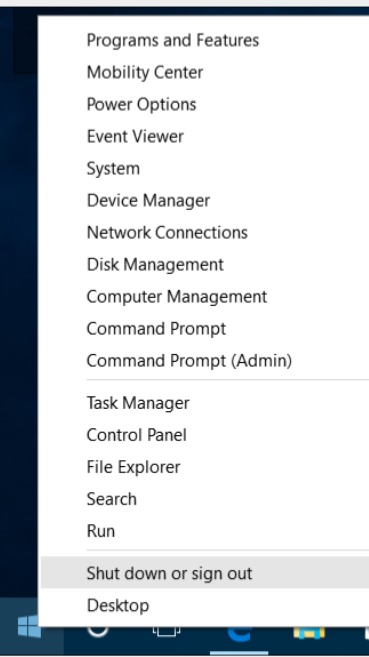
How to: Accessing Windows 10 power menu

Everyone likes a good secret. 

Well Microsoft decided to place a nice secret menu into Windows 10. 
Essentially a power menu with easy access to all sorts of goodies like the Control Panel, Display Options, Command Prompt and Task Manager.


To access this sweet power menu simply move your cursor to the Start Menu icon and right click.

Thursday, October 23, 2014

How to: Windows Administrative Tools for Power Users

When I had first installed Windows 8, I found that one of the most frustrating things was the lack of easy access to anything that was power-user-administrative-like.
After installing Windows 8, I found myself clicking the mouse 4-6 times to access these tools.
Granted, you have the Search in the Charm Bar, but that still was not as fast or easy as it should be.
Then I discovered the Number 1 most powerful Windows 8 shortcut for the Power User.
It's Windows Key+X.

Here you can access easily System Information, Device Manager, Power Options and even the Task Manager!

WINDOWS KEY HOTKEYS ARE YOUR LIFE
Here are some helpful Hotkeys to make your day a little more smoother.
Using a few of these will save you seconds many times a day and that adds up.
Try to avoid clicking away at the mouse to get from one program to another. Use Alt-Tab instead.
Win+E - Explorer
Win+R - Run
Win+Break - System Info
Win+D - Desktop
Win+Plus or Win+Minus (no shift) - Magnifier/Zoom In and Out
Win+F - Find Files
Alt-Tab - Switch between Apps
Win-Tab - Switch between Full Screen Apps

More helpful Hotkeys
Win+W - Search Control Panel and Settings stuff
Win+F - Search Files
Win+C - Charms (right side menu) then arrows to move and enter to launch.
Win+K - Devices
Win+I - Settings in any app plus brightness, network and other useful system features
Win+Arrows - Snap desktop apps to the sides
Win+(period) - Alternate sides to "snap" Metro Apps. Add shift to reverse it..
Win+PageUp or Win+PageDn - Move full screen applications to secondary monitors.
The Start Screen can be moved as well.