Monday, October 7, 2019

Image File or File Backup - Which One To Use?

You press the power button on your laptop.....the Windows animation starts....then goes on..... and goes on.....and goes on.

You press the power button again to restart it. The animation appears.....and takes forever to boot into Windows.
Finally you log in! You tell yourself, "I need a new computer!"

Or do you?

Image File vs File Backup
Sometimes all it takes is rebooting your computer. Other times it may take a complete restore.

A Windows Image File takes a complete snapshot of your entire drive, boot sectors, system files and all. 
It's the only way to backup and restore your Windows correctly.
Because so much data has to be backed up, a system image will take a much longer time to create than a smaller, more focused backup. 

It will also be harder to import on another computer. If your entire computer dies, you won’t be able to just restore a system image that was created on another computer — your Windows installation won’t run properly on different hardware. You’d need to reinstall Windows anyway.


A File Backup only backs-up files in your personal folders. Your documents, pictures...etc

Of the two, a File Backup is the most important. 

You can always restore Windows without an Image File, however if you don't have a backup of your personal files, documents and pictures.....well....you get the hint.


How to create a Windows Image File

Britec has an excellent video on how to create a Windows 10 Image File


Monday, July 15, 2019

Windows update 1903 (May Release)

In May Microsoft released it's Windows 10 1903 update. Nothing to get too excited about as it was just a few security updates and Windows "Light Theme" to go along with the now cool "Dark Theme". 

I prefer the "dark side" myself :-)

New Light Theme:
One of the most visual new features you will find is a new “Light Theme” that gives Windows a clean and, well, light look and feel.


Windows Sandbox:
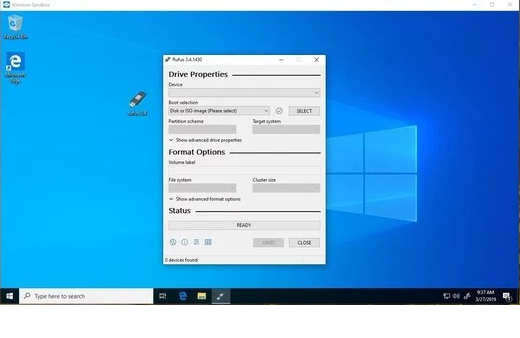
Windows Sandbox is a way to run untrusted applications within an isolated environment independent of your operating system. If the program/application you're running should run afoul, your system is safe. 

It's essentially a virtual machine running the Windows image, however it's extremely lightweight at only 100mb. Finish and close the application and everything is deleted within the Sandbox environment and whalla!....you're back in Windows. 

One caveat: It's only available to Windows Pro and Enterprise Windows systems. Users running Windows Home would need to upgrade to Windows Pro.

Cortana and Search are separate:
In previous builds of Windows, if you press the "Type Here To Search", Cortana would appear and your searches would include web pages. With the latest update 1903, Cortana and Search are no longer linked. Search and Cortana separated on the Windows 10 taskbar.
Users who just want to search interact with the search field, and those who use Cortana can do so with activation of the Cortana button.
Windows 10 users who don't use Cortana may right-click on the icon and select "Show Cortana button" to remove the Cortana button from the operating system's taskbar. Note that doing so won't disable Cortana on the device, it just hides the icon.

  • Pause Updates for Windows 10 Home:
Microsoft has previous pushed updates without the users consent unless settings have been changed otherwise with the update. Now you have the ability to postpone and pause/delay updates for a certain amount of days.

There are other new features like Reserved Storage (Which will be covered in another article), automatic active hours, Mail app improvements, and the usual under-the-hood upgrades for security and stability.

You'll find many new improvements as you continue to use the new build. But the features listed above are some of the ones you will want to check out first.

Monday, April 15, 2019

How To: Windows Services - What are they and is it safe to stop any of them?

Windows Services
are a core component of Microsoft Windows and enable the creation and management of long-running processes.
Services broadly fall into three categories depending on the actions and applications they control: Local Services, Network Services and System. Third party applications such as antivirus and printing software may install their own software.

Unlike regular applications, Windows Services do not have a user interface; they run in the background and the user does not directly interact with them. Unless stopped by the user, a Windows Service does not stop when a user logs off the computer; a regular application will.


That being said, having a multitude of services running may slow your system down. You can stop & disable certain services to speed up your system.
Most System services should NOT be stopped, but there are other services which may bog down your system and may be stopped.

Before diving into the Services and disabling/stopping certain services it's highly recommended you create a Restore Point and do a backup as well for your documents and pics...etc.
This way if things get awkward within Windows, you can go back to the restore point.

Windows 10 Services which are safe to disable.
1. AllJoyn Router Service
2. Application Layer Gateway Service
3. Bluetooth Support Service
4. BranchCache
5. Certificate Propagation
6. CNG Key Isolation
7. DMWAPPUSHSVC
8. Downloaded Maps Manager
9. Diagnostic Tracking Services - (Windows Phone home tracking service also called Telemetry)
10. Geolocation Service
11. HomeGroup Listener
12. HomeGroup Provider
13. Hyper-V Data Exchange Service
14. Hyper-V Guest Service Interface
15. Hyper-V Guest Shutdown Service
16. Hyper-V Heartbeat Service
17. Hyper-V Remote Desktop Virtualization Service
18. Hyper-V Time Synchronization Service
19. Hyper-V VM Session Service
20. Hyper-V Volume Shadow Copy Requestor
21. Internet Connection Sharing (ICS)
22. Internet Explorer ETW Collector Service
23. IP Helper
24. Microsoft (R) Diagnostics Hub Standard Collector Service
25. Microsoft iSCSI Initiator Service
26. Microsoft Windows SMS Router Service
27. Netlogon
28. Offline Files
29. Print Spooler (leave enabled if you want to use printer)
30. Printer Extensions and Notifications
31. Remote Access Auto Connection Manager
32. Remote Access Connection Manager
33. Remote Desktop Configuration
34. Remote Desktop Services
35. Remote Desktop Services UserMode Port Director
36. Remote Procedure Call (RPC) Locator
37. Remote Registry
38. Retail Demo Service
39. Routing and Remote Access
40. Sensor Data Service
42. Sensor Monitoring Service
43. Sensor Service
44. Smart Card Device Enumeration Service
45. Smart Card Removal Policy
46. SNMP Trap
47. Storage Service
48. Superfetch
49. SSDP Discovery
50. Touch Keyboard and Handwriting Panel Service
51. Windows Biometric Service
52. Windows Connect Now - Config Registrar
53. Windows Media Player Network Sharing Service
54. Windows Mobile Hotspot Service
55. Windows Remote Management (WS-Management)
56. Windows Font Cache Service.
57. Workstation
58. Xbox Live Auth Manager
59. Xbox Live Game Save
60. XboxNetApiSvc

Britec has an excellent video on which Services you can disable/stop.


Monday, March 11, 2019

How to: Windows Utilities - SpaceSniffer

When consistently downloading and installing programs, in the back of a users mind is that one big question. "Which programs are taking up the most space?"

While there are dozens of disk analyzer programs my preference is SpaceSniffer. It's quick in scanning your drive. My 250GB SSD took approx 1:20 at 100% scanning completed. Of course this varies with the drive capacities, amount of free space, and whether it's a standard hard drive or SSD.


SpaceSniffer has a few goodies. Besides the graphical GUI, it supports drag and drop, multiple views for different file types, customized search criteria and other features.

The website shows it's been tested on Windows 2000 thru Windows 8, however it works with 10 just as well.
The web page can be visited here.

Monday, January 14, 2019

Tech News: The future of Android....and a colorful replacement called Fuchsia

Google is currently developing an Android replacement for Android and the OS already has a name.

Fuchsia is based on a new kernel called Zircon.. The project became known in 2016 on Github without any official announcement.

Fuchsia's user interface and apps are written with Flutter, a software development kit allowing cross-platform development abilities for Fuchsia, Android and iOS. Flutter produces apps based on Dart, offering apps with high performance that run at 120 frames per second.


Flutter also offers a Vulkan-based graphics rendering engine called "Escher", with specific support for "Volumetric soft shadows", an element that Ars Technica wrote "seems custom-built to run Google's shadow-heavy 'Material Design' interface guidelines".


Although it's more on the technical side, the documentation concerning Fuchsia is located at the Google Source website & Document Page.