Tuesday, December 24, 2019

Ninite - Install multiple free software versions with one click

Don't want to hassle with downloading the latest browser, online storage, messaging and antivirus, and spending forever with installing that software on your PC?

Ninite is an excellent solution for downloading and installing multiple free programs in one single click.
It allows users to make a selection from a list of applications and bundles the selection into a single installer package.

Applications are installed from their respective official websites, ensuring you receive the latest official versions. Any adware that is optional on downloading is ignored and blocked by Ninite, using the option to deselect the adware or suspicious extensions during the installation process.

On the Ninite webpage, you select the software you need by the checkboxes and then click the custom Ninite installer at the bottom of the page.


From there the Ninite installer will download the programs you selected and you're free for other jobs.
One of the biggest benefits of Ninite is it downloads programs from their official websites, automatically checking their digital signatures or hash values to ensure they haven’t been tampered with.

It works entirely in the background, skipping any questions, ignoring prompts to reboot your PC, and automatically installing 64-bit applications on a 64-bit PC. 

Ninite works with Windows 7, 8 and 10

Thursday, December 12, 2019

Tech News: How hackers are breaking into Ring security cameras

Hackers have created dedicated software for breaking into Ring security cameras, according to posts on hacking forums reviewed by Motherboard (Tech Site). The camera company is owned by Amazon, which has hundreds of partnerships with police departments around the country.

An incident that occured Wednesday in Desoto County Tennesee, found a mother of an 8 year old extreemly shaken after finding the Ring security camera was hacked into and the hacker spoke through the device's speakers with one of the children.

Local news agency WMC5 shows the video (courtesy of the family) what the hacker would have seen: A view of the entire room from where the camera is installed in a far corner, looking down on their beds and dressers while they play. The hacker is heard playing the song "Tiptoe Through the Tulips" through the device's speakers, and when one of the daughters, who is eight years old, stops and asks who's there, the hacker says, "It's Santa. It's your best friend."
Their camera now sits disconnected on their kitchen counter.


Owners of Ring security cameras in Mississippi, Georgia, Florida and Texas have reported incidents where hackers tormented families with racial slurs, encouraged children into destructive behavior and demanded a ransom in Bitcoin.

A few security measures to consider:
Like most IP security cameras, Ring cameras rely on your homes wireless internet connection. However this is easy to hack into as most logins,usernames and passwords are very weak. It's recommended to change the login info to stronger username and passwords.

For increased security make your home Wi-Fi so it's not visible to others. For your security camera apps (which are downloadable to your iPhone or Android phone) ensure Two Factor authorization. This incorporates having the app send a text with a code you enter during the login procedure on the camera app.

Sunday, November 24, 2019

Windows 7 support is ending - Now what do you do? UPGRADE TO WINDOWS 10!

Microsoft has announced it's "End Of Life Support" for Windows 7

The full message reads:

So it's recommended you upgrade to Windows 10, but the free offer to upgrade to Windows 10 actually expired July 29, 2016.

Does that means your plans are awash? 
No....not quite.


There is STILL a way to get Windows 10 for free for those who have Windows 7, 8, and 8.1.

Along with Windows 10 November update, Microsoft has changed the Windows 10 installer to accept Windows 7, 8 and 8.1 product activation keys.
Yea!!! :-) ;-D

So....first off you need to determine your product key for your current version of Windows. To do this you need a product key finder. A good one is Magic Jelly Bean - https://www.magicaljellybean.com/keyfinder/

1. Install and run the key finder program.
2. Write your Windows product key..... you're going to need this later after installing Windows 10
3. **BACKUP YOUR DOCUMENTS, PHOTOS, PICS, DOWNLOADS...ETC to an external drive or USB
4. Create Windows 10 installation media if you don’t already have it lying around. 
You can do this with Microsoft’s Windows 10 media creation tool at https://www.microsoft.com/en-us/software-download/windows10 . 
Select “Create installation media for another PC” and the tool will offer to create a bootable USB flash drive or burn a bootable DVD.
5. Insert the installation media (USB or DVD) into the computer you want to upgrade, reboot, and boot from the installation media. Install Windows 10 normally following the steps provided.


  *** You can perform an upgrade installation that keeps your existing files or a clean installation that wipes your system drive.

6. During the installation of Windows 10, you'll be prompted to enter a product key. At this screen you have the option of entering the key from Windows 7 or 8 or you can Just click "I don't have a product key" and enter it later.


7.After you’ve installed Windows 10, head to Settings > Update & Security > Activation and you should see that your PC has a digital license.

If you didn’t enter a key during the installation process, you can enter a Windows 7, 8, or 8.1 key right in this window when you’re asked to provide a Windows 10 key. Windows will check in with Microsoft’s servers and give your PC a digital license for Windows 10.


And that's it! 
If you ever need to reinstall Windows 10, go thru the same process and use the same key.

You can also sign in to your new PC with a Microsoft account and that key will be associated with your Microsoft account, making it easy to reactivate your digital license if you ever need to reinstall Windows 10 later.

Monday, October 7, 2019

Image File or File Backup - Which One To Use?

You press the power button on your laptop.....the Windows animation starts....then goes on..... and goes on.....and goes on.

You press the power button again to restart it. The animation appears.....and takes forever to boot into Windows.
Finally you log in! You tell yourself, "I need a new computer!"

Or do you?

Image File vs File Backup
Sometimes all it takes is rebooting your computer. Other times it may take a complete restore.

A Windows Image File takes a complete snapshot of your entire drive, boot sectors, system files and all. 
It's the only way to backup and restore your Windows correctly.
Because so much data has to be backed up, a system image will take a much longer time to create than a smaller, more focused backup. 

It will also be harder to import on another computer. If your entire computer dies, you won’t be able to just restore a system image that was created on another computer — your Windows installation won’t run properly on different hardware. You’d need to reinstall Windows anyway.


A File Backup only backs-up files in your personal folders. Your documents, pictures...etc

Of the two, a File Backup is the most important. 

You can always restore Windows without an Image File, however if you don't have a backup of your personal files, documents and pictures.....well....you get the hint.


How to create a Windows Image File

Britec has an excellent video on how to create a Windows 10 Image File


Monday, July 15, 2019

Windows update 1903 (May Release)

In May Microsoft released it's Windows 10 1903 update. Nothing to get too excited about as it was just a few security updates and Windows "Light Theme" to go along with the now cool "Dark Theme". 

I prefer the "dark side" myself :-)

New Light Theme:
One of the most visual new features you will find is a new “Light Theme” that gives Windows a clean and, well, light look and feel.


Windows Sandbox:
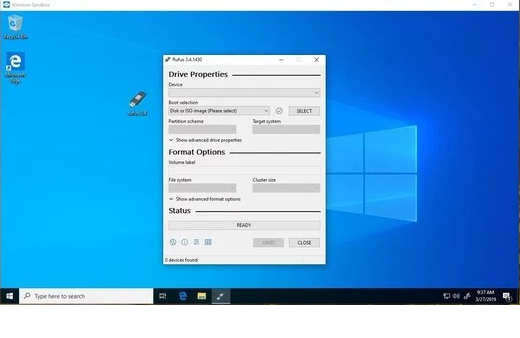
Windows Sandbox is a way to run untrusted applications within an isolated environment independent of your operating system. If the program/application you're running should run afoul, your system is safe. 

It's essentially a virtual machine running the Windows image, however it's extremely lightweight at only 100mb. Finish and close the application and everything is deleted within the Sandbox environment and whalla!....you're back in Windows. 

One caveat: It's only available to Windows Pro and Enterprise Windows systems. Users running Windows Home would need to upgrade to Windows Pro.

Cortana and Search are separate:
In previous builds of Windows, if you press the "Type Here To Search", Cortana would appear and your searches would include web pages. With the latest update 1903, Cortana and Search are no longer linked. Search and Cortana separated on the Windows 10 taskbar.
Users who just want to search interact with the search field, and those who use Cortana can do so with activation of the Cortana button.
Windows 10 users who don't use Cortana may right-click on the icon and select "Show Cortana button" to remove the Cortana button from the operating system's taskbar. Note that doing so won't disable Cortana on the device, it just hides the icon.

  • Pause Updates for Windows 10 Home:
Microsoft has previous pushed updates without the users consent unless settings have been changed otherwise with the update. Now you have the ability to postpone and pause/delay updates for a certain amount of days.

There are other new features like Reserved Storage (Which will be covered in another article), automatic active hours, Mail app improvements, and the usual under-the-hood upgrades for security and stability.

You'll find many new improvements as you continue to use the new build. But the features listed above are some of the ones you will want to check out first.